A merchant opens a support ticket that reads, almost word for word, like this: "Account Editor shows the update, but my 3PL shipped the original order."
It is the single most common integration complaint in post-purchase editing, and the diagnosis is almost never what the merchant expects. The edit worked. It is visible in the Shopify admin, itemised in the order timeline, correct in every field. The warehouse simply never saw it, because it had already downloaded the order and moved on.
This is a timing problem wearing the costume of a software bug. An edit window that your fulfillment stack does not respect is not an edit window — it is a promise you cannot keep, and every unhonoured edit becomes a wrong shipment, a reship, or a return.
This guide covers the mechanic that makes edit windows real: the fulfillment hold. Specifically:
Why edits disappear after Shopify even when they applied correctly
The four hold patterns, and which one your stack needs
How the major OMS and 3PL platforms actually behave on order pull
How to set your hold window from your own pick timestamps
What breaks when the hold is misconfigured
Why Order Edits Vanish After Shopify
Post-purchase editing tools edit the order inside Shopify. They do not push data to your warehouse. That distinction is the root of nearly every failure.
Your fulfillment system reads order data from Shopify, on its own schedule and by its own rules. If it reads the order before the customer finishes editing, it locks in the original data and treats that snapshot as final. Shopify then holds the corrected version, your warehouse holds the stale one, and nothing reconciles them.
In our own support data, more than half of "edits aren't applying" reports turn out to be cases where the edit applied correctly and the fulfillment system overwrote or pre-empted it. The software did its job. The sequencing did not.
The Symptom Table
These four symptoms all trace back to the same cause:
What you see | What actually happened |
|---|---|
Edit is visible in Shopify | The edit worked correctly |
3PL shows the old data | Order was imported before the window closed |
Wrong item shipped | Fulfillment locked the original snapshot |
Address change ignored | The OMS overrode Shopify's value |
The Golden Rule
Everything in this guide reduces to one sentence:
Your fulfillment system must only see the order after the edit window ends.
Not "should ideally." Must. If the warehouse can see an order while it is still editable, you have a race condition between your customer and your picker, and you will lose it at random. Every hold pattern below is a different way of enforcing that one rule against a different kind of integration.
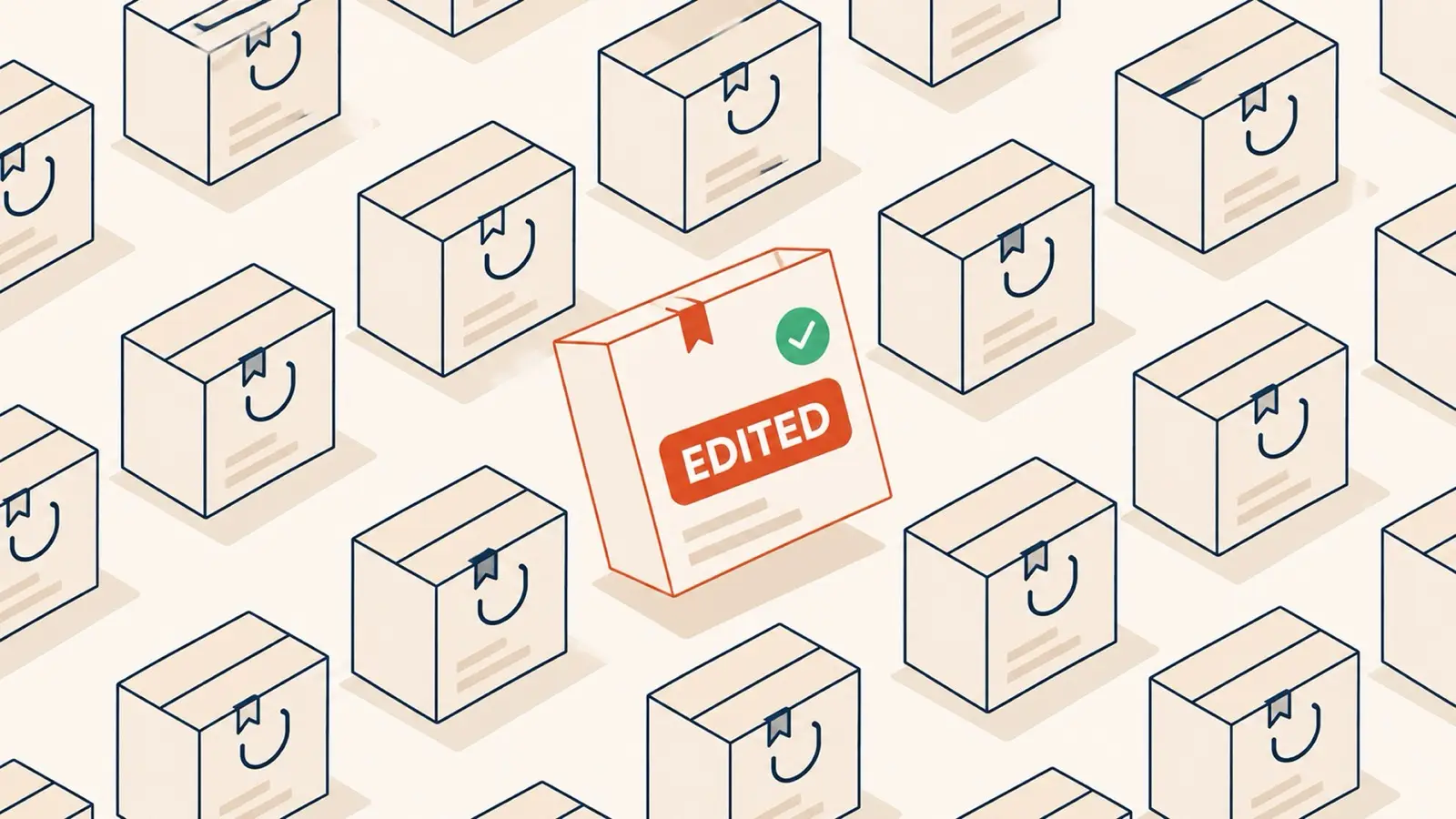
The Four Hold Patterns
Which pattern you need depends on how your system ingests orders, not on which vendor you use. There are two ingestion models and four corresponding fixes.
Pull-based systems poll Shopify on a schedule and import whatever they find. They generally respect delays, tags, and filters, which makes them straightforward to gate. Push-based systems receive orders when a fulfillment event fires, and typically ignore edits made after that point. With those, you control the trigger rather than the import.
1. Delay the Import Window
The cleanest pattern, available when your platform has a native import delay. You set a minimum order age and the system simply refuses to import anything younger.
ShipStation supports this directly through a minimum-order-age setting under its Shopify connection settings. Set it to match your edit window and the problem disappears with no automation required. An order placed at 10:00 with a sixty-minute window imports at 11:00, already final. DPD Fulfilment is configured the same way, by delaying dispatch rather than import.
If your platform offers this, use it. It is the only pattern with no moving parts.
2. Gate Sync With Order Tags
When there is no native delay but the system can filter by tag, you gate on a tag instead of a clock.
The pattern uses Shopify Flow as the timer: on order creation, add a HOLD tag; wait for the length of your edit window; remove the tag. Your fulfillment system is configured to import only orders that do not carry HOLD, so the order becomes visible to the warehouse the moment the tag comes off.
CartRover works this way through its order-tag filters. One detail matters: your sync frequency now sets your worst-case delay. A ten-minute download frequency means orders reach the warehouse up to ten minutes after the tag clears, so count that into the total.
3. Grant the OMS Permission to Accept Edits
Some systems import on time and still discard your edits, because accepting downstream changes is a setting they ship switched off.
Brightpearl is the clearest example. It is a pull-based OMS with an explicit order-edits permission, and while that permission is off, every Shopify edit is silently discarded — no error, no warning, no trace. Merchants debug the edit window for days before discovering the problem was a checkbox.
If your OMS has an equivalent setting, verify it before touching timing. A delay cannot fix a system that has been told to ignore changes.
4. Control the Fulfillment Trigger
Push-based systems cannot be delayed on import, because they do not import. They react to a fulfillment event.
With these, the lever is when that event fires. Rather than holding the order back from the warehouse, you hold back the fulfillment request itself until the window closes. GetQuickMail and several WMS tools sit in this category. The rule inverts: control when fulfillment is triggered, not when edits are allowed.
How the Major Platforms Behave
The pattern you need follows from the ingestion model. This is how the common systems sort:
System | Model | Hold mechanism | Difficulty |
|---|---|---|---|
ShipStation | Pull, scheduled | Native minimum order age | Easiest — no Flow needed |
DPD Fulfilment | Pull, scheduled | Dispatch delay | Easy |
CartRover (Extensiv) | Pull, tag-filtered | HOLD tag + Shopify Flow | Moderate |
Brightpearl | Pull, OMS | Enable order edits, then delay | Moderate — check the permission first |
GetQuickMail | Push, on fulfillment | Delay the fulfillment trigger | Harder — invert the approach |
ShipBob, NetSuite, Cin7, Peoplevox, Starshipit | Pull, varies | Tag gating or scheduled delay | Per-platform — see the integration guides |
If your provider is not listed, the diagnostic question is simply whether it asks Shopify for orders or waits to be told. Pull systems get delayed or tag-gated. Push systems get their trigger moved. The full set of integration guides covers the specifics for around forty platforms, and the integrations directory lists what each one supports.
Setting the Hold Window
There is no correct hold duration in the abstract. The correct duration is the time you genuinely have before goods move, and only your own data knows that.
Read It From Your Own Timestamps
Export a few hundred recent orders and measure the gap between order creation and first fulfillment event. That distribution is your real constraint. A store that batch-picks at 4pm has hours of slack it is not using. A print-on-demand operation that starts production in minutes has almost none, and should be honest about that rather than advertising a window it cannot honour.
Then Subtract Your Sync Lag
A common error is setting the hold equal to the edit window and forgetting the sync interval on top. If your window is sixty minutes and your 3PL polls every ten, your true worst case is seventy. Configure the hold against the total, not the window alone, or a handful of orders will slip through the gap and behave exactly like the bug you were trying to fix. Your edit window and validation rules should be set against that combined figure.
Match the Window to the Category
Fitted goods generate more edits and benefit from a longer window, because variant swaps are what prevent returns before the package ships. Commodity and consumable orders generate fewer, so a shorter window costs little. Set it per store, not per benchmark.
What Breaks When the Hold Is Wrong
Both failure directions have real costs, and they are not symmetrical.
Hold Too Short
The window advertises flexibility the warehouse does not honour. Customers edit, the edit applies in Shopify, the wrong version ships anyway. You now pay for the reship and absorb the trust damage of having offered a control that did not work — worse than never offering it, because the customer acted on it.
Hold Too Long
Every order ships later, including the large majority nobody edits. Dispatch promises slip and you take a customer-experience cost across the whole book to protect a small minority of orders. This is the failure mode merchants fear, and it is usually overestimated: a window measured in tens of minutes rarely moves a delivery date at all.
Unpaid Edits Reaching the Warehouse
The sharpest edge case. If a customer adds items and the additional payment has not settled, an order released too early ships goods that were never paid for. Payment protection — holding release until the balance is captured, or reverting unpaid changes — is what closes this, and it matters most for high-value, B2B, and cash-on-delivery flows.
Diagnosing a Failed Edit
When an edit does not reach the warehouse, work in this order. It isolates the cause in four steps.
Confirm the edit in Shopify first. Open the order in the admin and check items, quantities, address, and the timeline. If it is not there, the problem is upstream in eligibility rules, not integration.
Identify your ingestion model. Pull-based OMS, delay-capable 3PL, tag-filtered sync, push-based fulfillment, or custom automation. The fix follows from the category.
Compare timestamps. Line up order creation, edit time, and the import or fulfillment event. If the import precedes the edit, it is a timing problem and nothing else.
Check the edit permission. If the import happened after the edit and the data is still stale, the receiving system is discarding changes by configuration.
The full troubleshooting guide walks each branch, and operations analytics will show you whether edits are landing before or after your fulfillment events across the whole order book rather than one ticket at a time.
Conclusion: The Hold Is What Makes the Window Real
Post-purchase editing is usually discussed as a customer-facing feature — a widget, a window, a set of permissions. Operationally it is a sequencing problem, and the customer-facing half is the easy half.
The hold is the part that makes the rest true. Without it, an edit window is an interface that collects corrections your warehouse will ignore, which is worse for the customer than having no window at all. With it, the warehouse only ever sees final orders, the picker is right the first time, and the manual correction work that fills your support queue stops being generated.
Get the sequencing right and everything downstream — fewer wrong shipments, fewer reships, fewer returns — follows without further effort.
Ready to Align Edits With Fulfillment?
If edits are applying in Shopify but not reaching your warehouse, the fix is in the timing between the two, not in the editing itself.
Account Editor handles the customer-facing edit window and ships integration guides for around forty 3PL, OMS, ERP, and shipping platforms — including native delay setups, tag-based holds, and payment protection that prevents unpaid edits from being released to fulfillment.
See how Account Editor keeps your edit window and your warehouse in step.