
Brightpearl Integration — Shopify Order Editing Sync (Account Editor)
Purpose
Help merchants using Brightpearl understand why post-purchase edits sometimes don’t sync — and exactly how to configure Brightpearl so Account Editor order edits are respected end-to-end.
This article directly prevents:
- Wrong items being shipped
- Address changes being ignored
- “Account Editor didn’t work” support tickets
Why This Matters
Brightpearl is a pull-based OMS. It imports orders from Shopify, then manages fulfillment downstream. If Brightpearl is not configured to accept Shopify order edits:
- Product swaps won’t sync
- Quantity changes won’t apply
- Added or removed items won’t appear
- Fulfillment teams will ship the original order, not the edited one
Account Editor did its job — Brightpearl simply ignored the updates.
This is the #1 Brightpearl-related cause of incorrect fulfillment after order editing.
How Account Editor + Brightpearl Work Together
Account Editor
- Edits the existing Shopify order
- Updates line items, quantities, variants, address, totals
- Logs changes in the Shopify order timeline
Brightpearl
- Pulls order data from Shopify
- Applies its own internal rules
- Requires explicit permission to accept edits
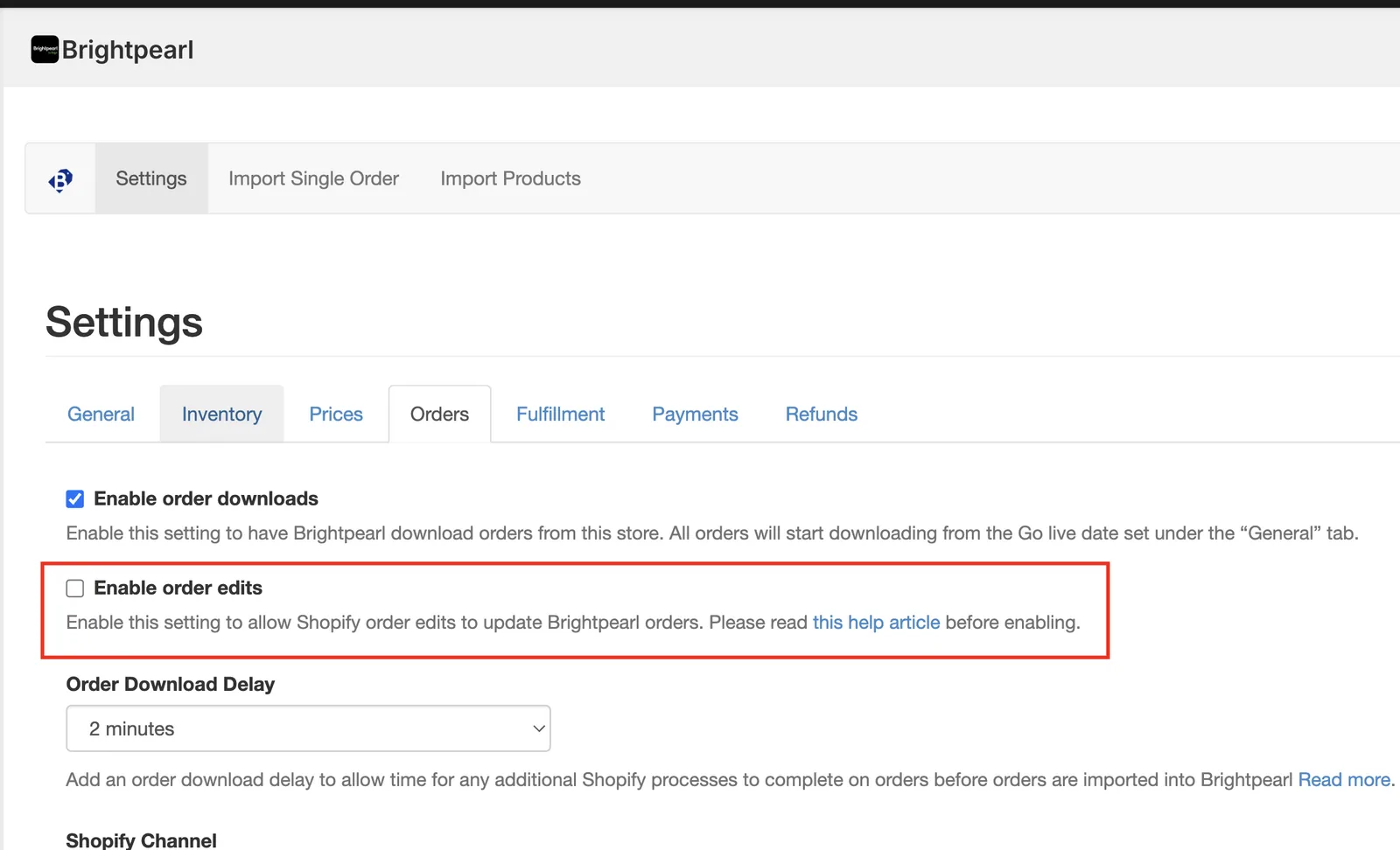
If Brightpearl’s “Enable order edits” setting is OFF, all Shopify edits are silently discarded.
Symptoms of Incorrect Brightpearl Configuration
If you see any of these, this article applies to you:
- Shopify shows updated items, Brightpearl does not
- Fulfillment picked the wrong SKU
- Variant swaps missing in Brightpearl
- Quantity changes ignored
- Order edits appear correct in Shopify Admin only
These are not bugs — they are configuration issues.
Required Setup — Enable Order Edits in Brightpearl
Step-by-Step Configuration
- Log in to Brightpearl
- Go to Settings
- Open the Orders tab
- Enable (tick): “Allow order edits” / “Enable order edits”
- Click Save
What Happens After Enabling This Setting
Once enabled, all Account Editor changes sync correctly, including:
- Product variant swaps
- Quantity increases / decreases
- Item additions or removals
- Address updates
- Order total changes
Brightpearl will now:
- Re-read the Shopify order
- Import the final, edited version
- Keep fulfillment aligned with customer changes
Verification Checklist (Highly Recommended)
After setup, perform this quick test:
- Place a test order in Shopify
- Edit the order using Account Editor:
- Swap a variant or change quantity
- Open the order in Shopify Admin
- Confirm edits are visible
- Open the same order in Brightpearl
- Confirm edits match Shopify
If both match → setup is complete If not → proceed to troubleshooting below
Common Issues & Fixes
| Issue | Likely Cause | Fix |
|---|---|---|
| Brightpearl shows old items | Order edits disabled | Enable “order edits” |
| Some edits sync, others don’t | Order imported too early | Delay import (see Flow guide) |
| Fulfillment already started | Order pulled before edit window ended | Hold order before sync |
| Quantities mismatch | Manual override in Brightpearl | Refresh order / resync |
Best Practices (Strongly Recommended)
- Delay Brightpearl order import until the edit window ends
- Pair this setup with Shopify Flow holds
- Always test edits before going live
- Use Analytics to confirm edits occurred before fulfillment
Brightpearl should never see an order while it’s still editable.
Related Guides
Need Help?
If edits still don’t sync after enabling this setting:
Contact Account Editor Support Share: Store URL Order number Screenshot of Brightpearl Orders settings
We’ll help confirm whether the issue is:
- Timing
- Flow logic
- Brightpearl override behavior
Summary
Account Editor edits Shopify orders correctly Brightpearl must allow order edits One checkbox prevents most fulfillment mistakes Proper setup = fewer returns, fewer tickets, happier customers