
CartRover & GetQuickMail — Holding Orders Until Edit Window Ends (Account Editor)
Purpose
Help merchants using CartRover (Extensiv) or GetQuickMail ensure that post-purchase edits made via Account Editor are completed before orders are sent to fulfillment.
This article directly addresses the most common integration complaint:
“Account Editor shows the update, but my 3PL shipped the original order.”
Why This Matters
Many 3PLs do not wait for post-purchase editing windows. If CartRover or GetQuickMail receives an order too early:
- Product swaps may be ignored
- Address updates may not sync
- Quantity changes may be missed
- Fulfillment teams ship the wrong version
Account Editor works correctly — but fulfillment timing must be controlled.
How Holding Orders Solves the Problem
Account Editor edits orders inside Shopify. CartRover and GetQuickMail rely on Shopify events or sync rules to decide when to pull or receive orders. By temporarily holding orders, you ensure:
- Customers finish editing
- Payments are confirmed
- Final order state is sent to fulfillment
CartRover (Extensiv) — Hold Orders Using Tags + Shopify Flow
CartRover supports tag-based filtering, making it ideal for edit-window holds.
How It Works (CartRover)
- Order is created in Shopify
- Shopify Flow adds a HOLD tag
- CartRover ignores orders with the HOLD tag
- After the edit window ends, the tag is removed
- CartRover syncs the finalized order automatically
Step-by-Step Setup (CartRover)
Step 1: Create the HOLD Tag Flow in Shopify Flow
Flow logic:
- Trigger: Order Created
- Action: Add order tag →
HOLD - Wait: Match your edit window (e.g. 60 minutes)
- Action: Remove order tag →
HOLD

Result: Orders remain editable until the tag is removed.
Step 2: Configure CartRover to Skip HOLD Orders
Path in CartRover: Carts → Your Shopify Store → Edit Setup Shopify Cart Setup → Order Filters
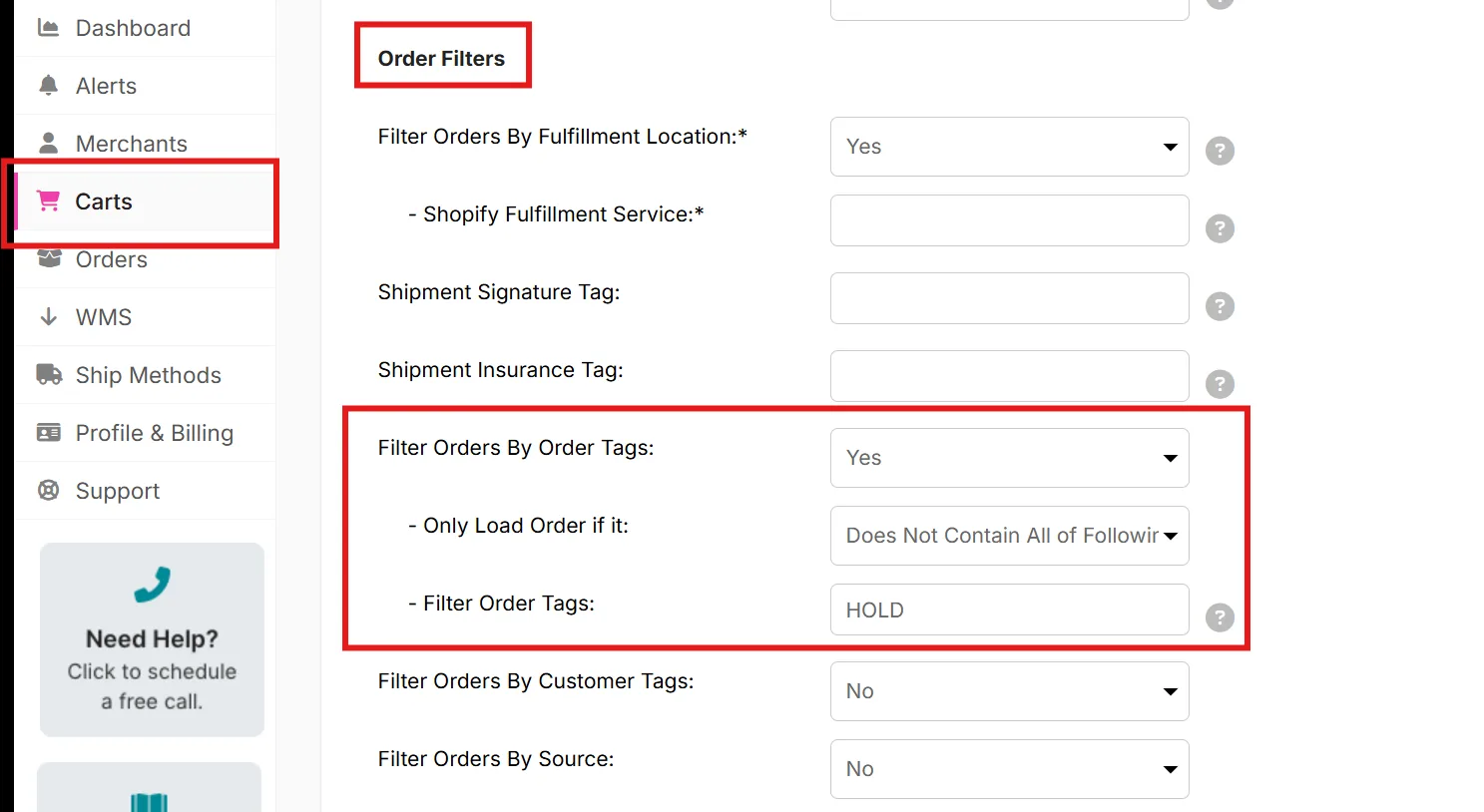
Required Settings
| Setting | Value |
|---|---|
| Filter Orders by Order Tags | Yes |
| Only load order if it | Does NOT contain |
| Filter Order Tags | HOLD |
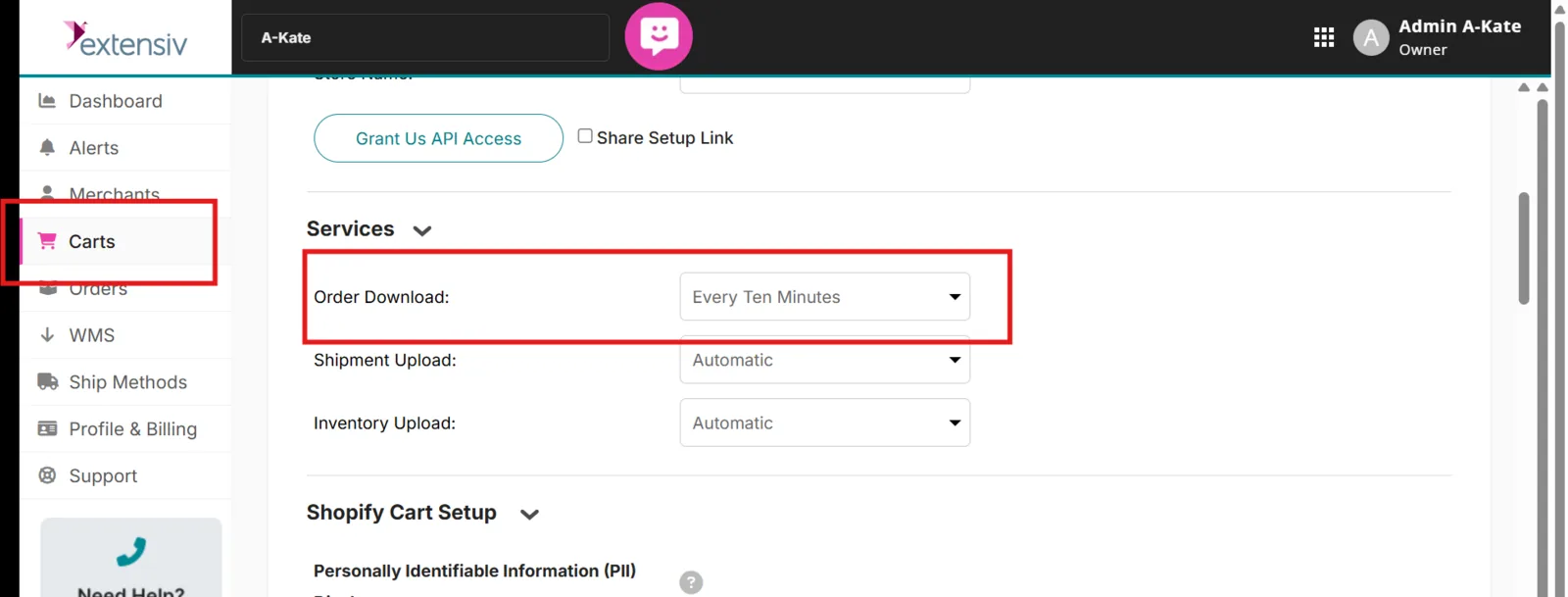
Step 3: Set Sync Frequency
| Setting | Recommended |
|---|---|
| Order Download Frequency | Every 10 minutes |
Example Timeline (CartRover)
| Time | Event |
|---|---|
| 10:00 | Order placed |
| 10:00–11:00 | Customer edits order |
| 11:00 | HOLD tag removed |
| 11:05 | CartRover syncs order |
| After | Fulfillment begins |
CartRover always receives the final, edited order.
Common CartRover Issues & Fixes
| Issue | Cause | Fix |
|---|---|---|
| Order syncs immediately | HOLD filter missing | Add tag filter |
| Edits missing | Wait too short | Increase wait time |
| Order stuck on HOLD | Flow inactive | Activate Flow |
GetQuickMail — Control Fulfillment via Shopify Settings + Flow
GetQuickMail does not pull orders itself. It relies on Shopify fulfillment triggers. This gives you full control.
How It Works (GetQuickMail)
- Shopify creates the order
- Shopify does not auto-fulfill
- Account Editor allows edits
- Once final, fulfillment is triggered
- GetQuickMail receives only the finalized order
Step-by-Step Setup (GetQuickMail)
Step 1: Disable Automatic Fulfillment in Shopify
Path: Shopify Admin → Settings → Checkout → Order Processing
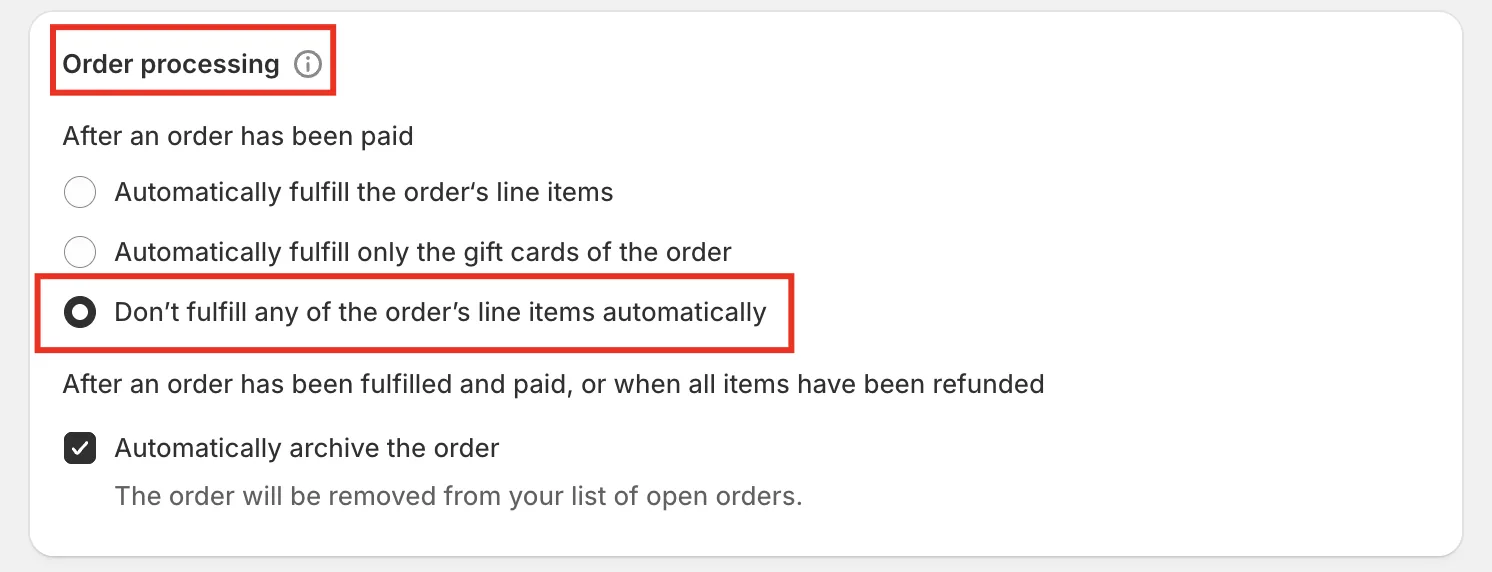
Required Setting
| Setting | Value |
|---|---|
| After an order has been paid | Don’t fulfill any line items automatically |
This prevents GetQuickMail from receiving orders too early.
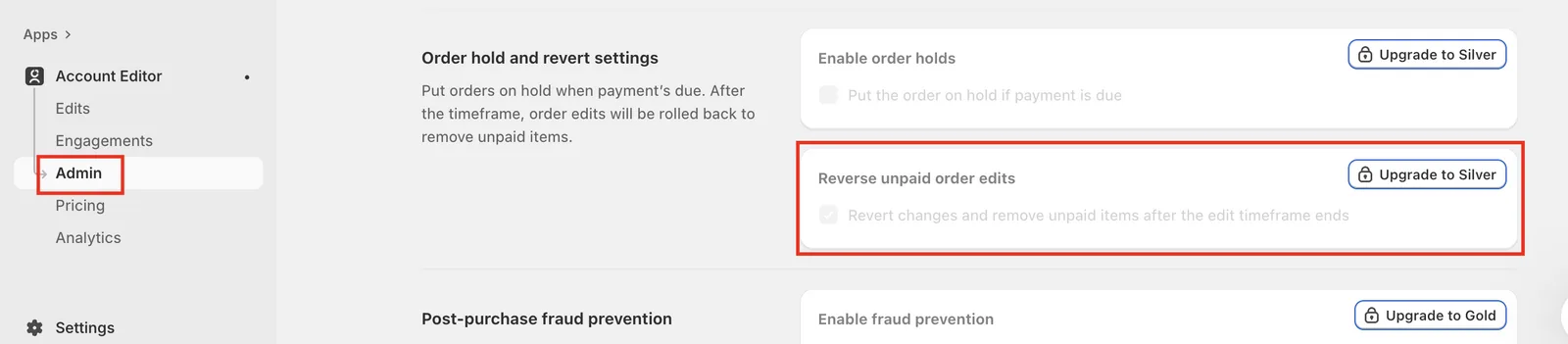
Step 2: Enable Reverse Unpaid Order Edits in Account Editor
Path: Account Editor → Admin → Order Hold & Revert Settings
Required Setting
| Setting | Value |
|---|---|
| Reverse unpaid order edits | ON |
Ensures unpaid upsell edits are reverted before fulfillment.
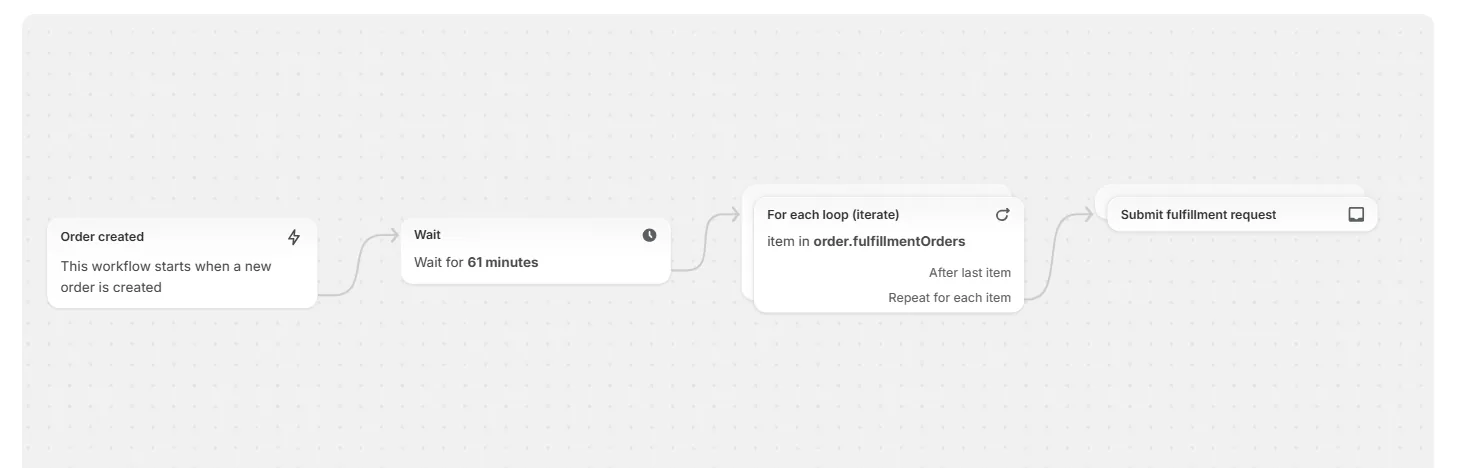
Step 3: (Optional) Use Shopify Flow to Trigger Fulfillment
If needed, trigger fulfillment after your edit window using Flow.
Example:
- Trigger: Order Updated
- Condition: Edit window expired
- Action: Fulfill order
Example Timeline (GetQuickMail)
| Time | Event |
|---|---|
| 10:00 | Order placed |
| 10:00–10:30 | Customer edits order |
| 10:30 | Edit window ends |
| 10:35 | Fulfillment triggered |
| After | GetQuickMail receives final order |
Best Practices (Highly Recommended)
Match edit window = hold duration Always enable Reverse unpaid order edits
Test with: Address change Item swap Quantity increase
Confirm fulfillment sees updated data
Common GetQuickMail Issues & Fixes
| Issue | Cause | Fix |
|---|---|---|
| Order sent too early | Auto-fulfillment enabled | Disable it |
| Wrong item shipped | Edit not finalized | Extend window |
| Payment mismatch | Edit unpaid | Expected behavior |
Related Guides
Need Help?
If you want us to:
- Configure Flow rules
- Validate CartRover filters
- Review GetQuickMail timing
Contact Account Editor Support with:
- Store URL
- Fulfillment provider
- Edit window duration
We’ll help you finalize this cleanly.
Summary
- CartRover → Tag-based HOLD logic
- GetQuickMail → Control Shopify fulfillment
- Fulfillment must wait for edits to finish
- Correct timing = fewer errors, fewer tickets