
Shippingbo
Shippingbo Integration — Shopify Edited Order Sync (Account Editor)
This guide helps merchants using Shippingbo configure the integration so that Account Editor order edits are always reflected correctly. Shippingbo must be configured to skip orders until payment is captured — ensuring it only downloads finalized, edited orders.
Step 1 — Enable Manual Payment Capture in Shopify
- Log in to Shopify Admin
- Go to Settings → Payments
- Scroll down to the Payment capture section
- Select "Manually capture payment for orders"
- Click Save
Payment authorizations expire after 7 days (Shopify Payments). Always capture payment within this window — or the authorization will lapse and you won't receive payment for the order.
Step 2 — Open Connectors in Shippingbo
- Log in to your Shippingbo account
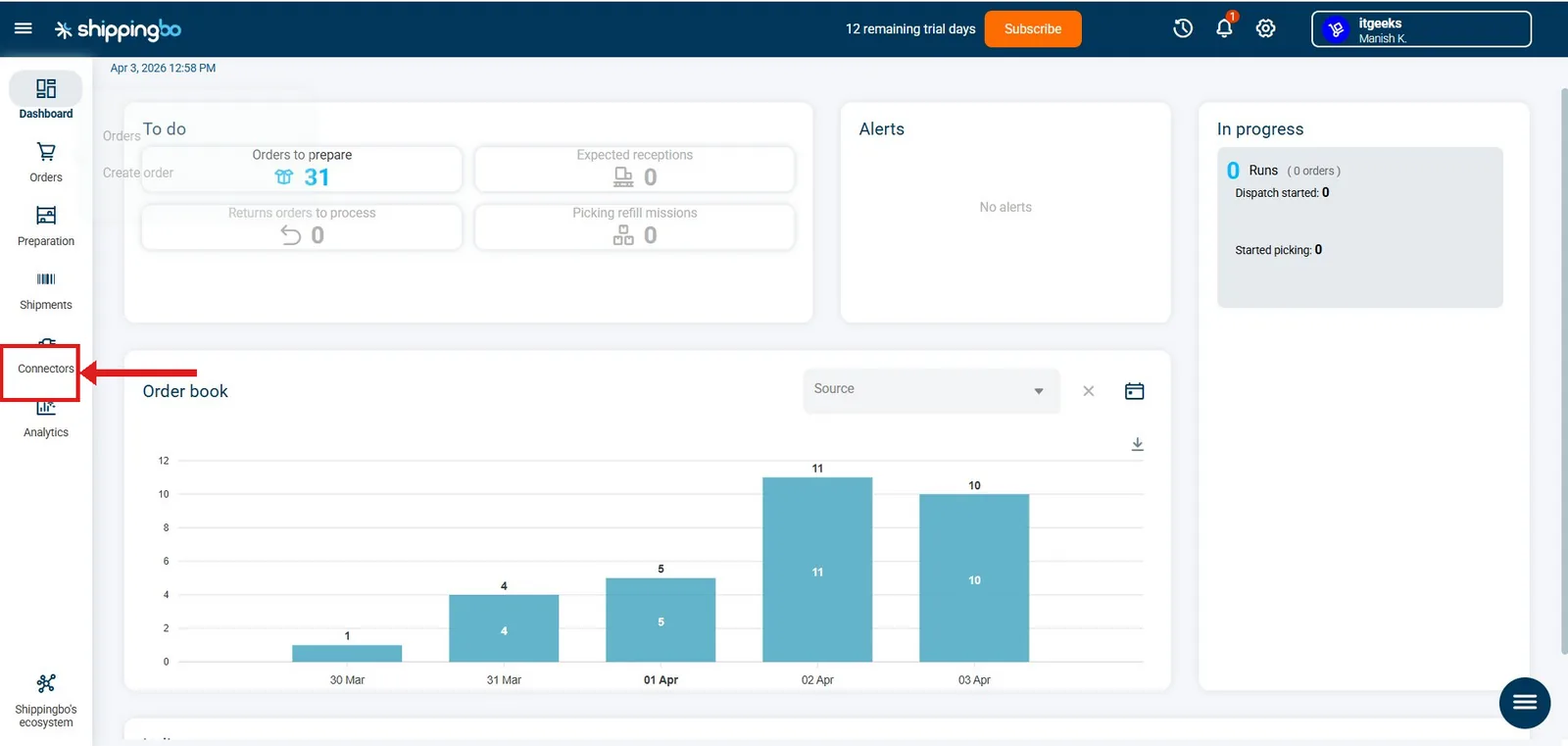
- On the left sidebar, click Connectors
Step 3 — Open Your Shopify Connector Settings
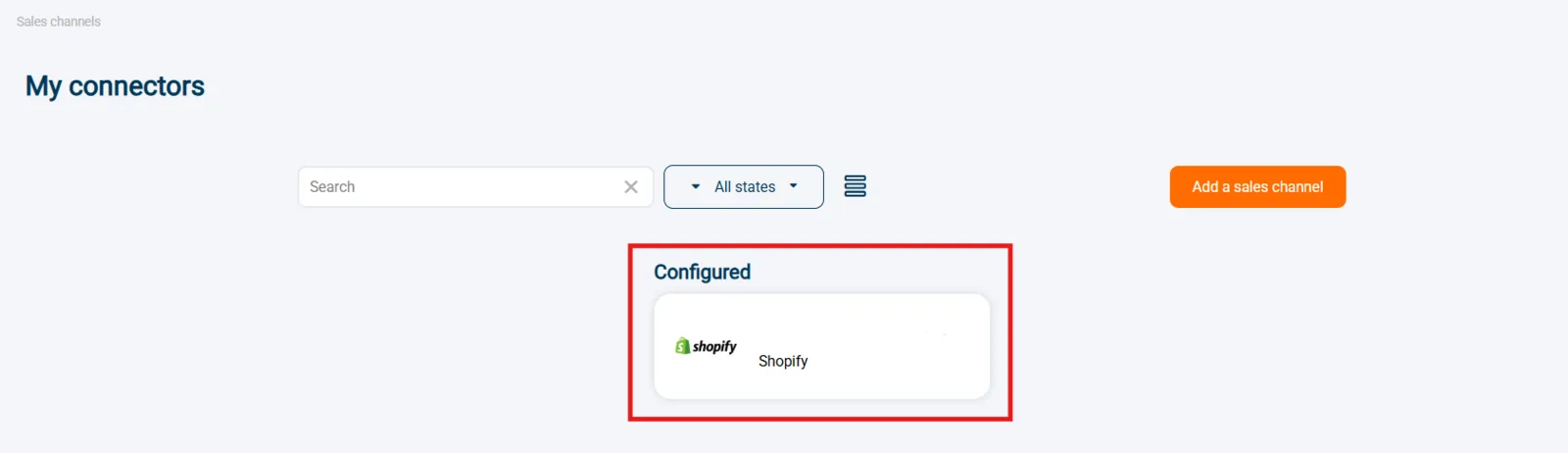
- On the My Connectors page, find your store listed under Configured
- Click on the Shopify block to open its settings
Step 4 — Set the Exclusion Rules
- Inside connector settings, scroll down to the Orders retrieving section
- Find "Exclude by payment status" — add these tags:
authorized,partially_paid, failed, voided, refunded and pending - Save your settings
The value
authorized corresponds to Shopify's financial_status field. Shippingbo will skip these orders entirely until payment is captured and status becomes Paid.Step 5 — Edit the Order, Then Capture Payment
This is your new workflow for every order:
- New order arrives → Payment = Authorized (Shippingbo skips it )
- Open the order in Account Editor — add or remove items freely
- Save / commit your edits
- Go to Shopify Admin → open the order → click Capture Payment
- Payment becomes Paid → Shippingbo downloads the final correct order
What happens after this setup:
- Correct order total — removed items not counted
- Added items appear correctly
- Removed items are excluded from total
- Quantity changes respected
- No manual correction needed in Shippingbo
Setup complete! Shippingbo will always receive the final, correctly edited order from now on.
Automate Payment Capture with Shopify Flow
Instead of manually capturing payment on every order, set up a Shopify Flow automation to manage capture while keeping a review window for normal Online Store orders.
Step 1 — Trigger
A new order is created in your store.
Step 2 — Condition 1: Sales Channel Check
The flow checks whether the order came from the Online Store.
- If NOT from Online Store (e.g. POS or draft order) → capture payment immediately
- If from Online Store → continue to the next check
Step 3 — Condition 2: Fraud Risk Check
Shopify's fraud analysis checks the order risk level.
- If risk level is HIGH → capture payment immediately (review these orders manually)
- If risk is not HIGH → continue to the next check
Step 4 — Condition 3: Restricted Tag Check
The flow checks whether the order is tagged restricted.
- If tagged "restricted" → capture payment immediately
- If not restricted → wait 15 minutes, then capture payment
Flow Summary
| Scenario | Action |
|---|---|
| Order from other channels (not Online Store) | Capture immediately |
| Online Store + HIGH risk | Capture immediately |
| Online Store + tagged "restricted" | Capture immediately |
| Online Store + normal order | Wait 15 min, then capture |
Why the 15-minute delay? The wait gives you a short window to review normal, low-risk Online Store orders before payment is finalized. This helps with last-minute cancellations or manual edits in Account Editor before Shippingbo imports the order.