
General Settings — Edit Window, Time Limits & Validation Rules
Purpose
Answer the most common configuration question merchants have:
“How long can customers edit orders, what limits apply, and when do edits stop?”
This article defines the core behavior of Account Editor and directly reduces:
- “Why can’t customers edit?”
- “Edits expired too fast”
- “Why did editing suddenly stop?”
Why This Matters
Most order-editing issues are not bugs — they’re caused by General Settings. Incorrect configuration leads to:
- Customers missing the edit window
- Orders reaching fulfillment too early
- Confusion around unpaid edits
- Address validation limits being exceeded
Getting these settings right ensures:
- Predictable customer experience
- Clean fulfillment handoff
- Fewer refunds, cancellations, and tickets
How General Settings Work in Account Editor
General Settings define when editing is allowed and when it stops. They control:
- How long customers can edit
- What happens when time expires
- Which validations are enforced
- How unpaid edits are handled
These rules apply before:
- Shopify Flow automations
- 3PL syncs
- Upsell logic
Think of this as the foundation layer of Account Editor.
Edit Window — How Long Customers Can Edit
What the Edit Window Does
The Edit Window determines how long after checkout a customer can:
- Edit items
- Update address
- Change shipping
- Accept upsells
- Cancel orders (if enabled)
Once this time expires:
- Editing UI disappears
- Orders become locked
- Fulfillment should begin
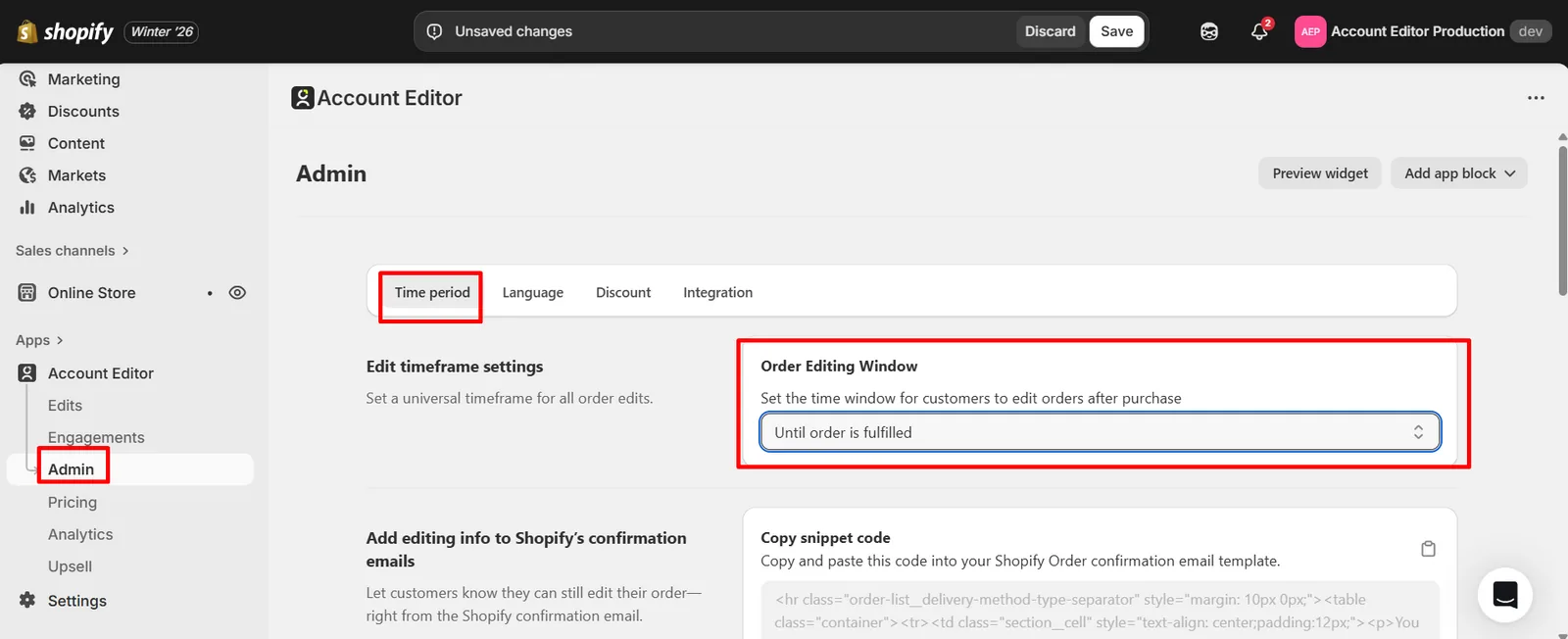
Configuration
Path: Account Editor Admin → General Settings → Edit Window
You can set:
- Minutes (e.g. 10, 30, 60)
- Hours (for longer workflows)
Best Practices
| Store Type | Recommended Edit Window |
|---|---|
| High-volume / fast fulfillment | 10–15 minutes |
| Standard DTC stores | 30–60 minutes |
| 3PL / OMS integrations | Match fulfillment delay |
| B2B / custom workflows | 60+ minutes |
Important: Your edit window must always be shorter than fulfillment or 3PL sync delays.
What Happens When the Edit Window Expires
When time runs out:
- Customers can no longer edit
- Upsells stop showing
- Address & shipping edits lock
- Order becomes final
- Fulfillment can safely begin
If a customer tries to access the editor after expiry:
- They’ll see a disabled or closed state
- No changes are applied
This behavior is intentional and required by Shopify once fulfillment begins.
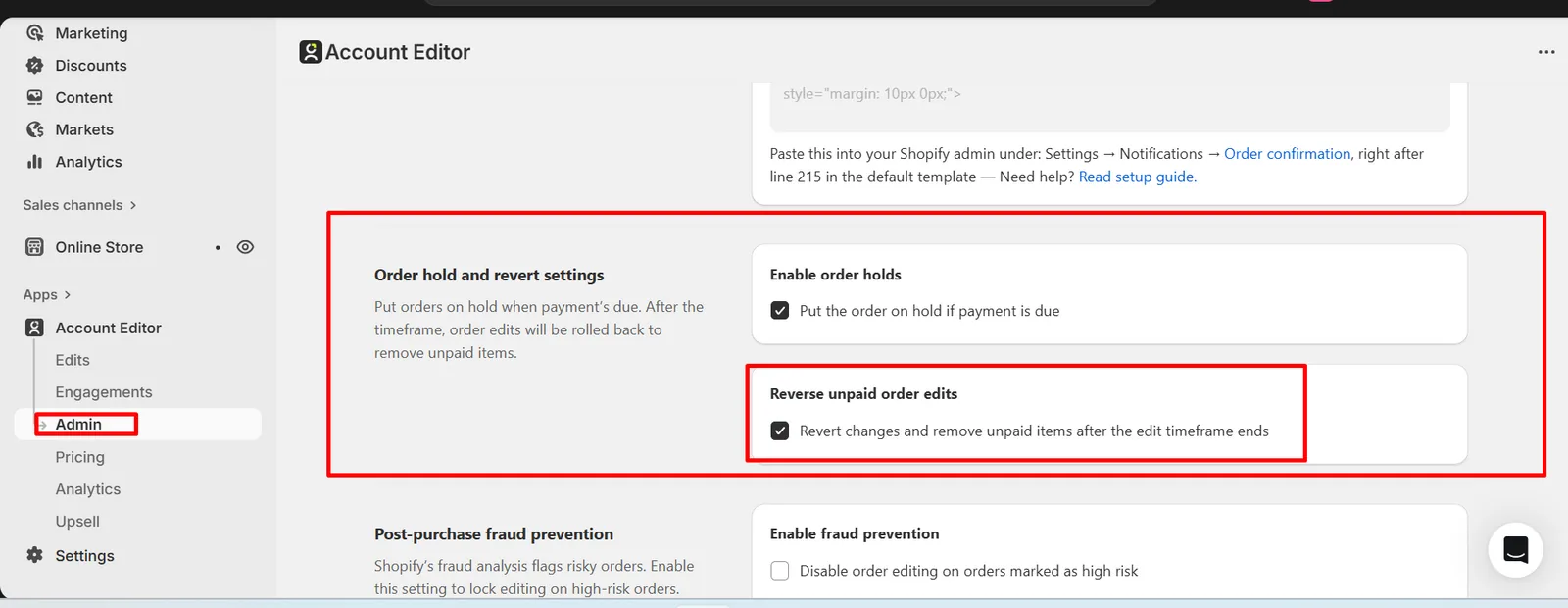
Reverse Unpaid Order Edits (Critical Setting)
What This Does
When enabled, Account Editor will:
- Place the order on hold if an edit increases the total
- Require payment for the difference
- Automatically revert edits if payment is not completed before the edit window ends
Why This Matters
Without this:
- Orders can remain partially edited
- Fulfillment may receive unpaid changes
- Accounting mismatches occur
With this ON:
- Only fully paid, finalized orders proceed
- Customers can’t accidentally keep unpaid upgrades
Configuration
Path: Account Editor Admin → General Settings → Order Hold & Revert
| Setting | Recommended |
|---|---|
| Reverse unpaid order edits | ON |
Address Validation & Suggestion Limits
Address Suggestions
Controls how many address suggestions customers can use per billing cycle. Used for:
- Auto-complete
- Reducing delivery failures
- Improving data accuracy
Address Validation
Controls how many address validations can be performed. Used to:
- Verify deliverability
- Reduce failed shipments
- Improve carrier success rates
What Happens When Limits Are Reached
- Suggestions stop appearing
- Manual address entry remains available
- Editing is not blocked, only validation features
This prevents unexpected overages while keeping editing usable.
Real Merchant Scenarios
Scenario A — “Customers say editing disappeared”
Cause: Edit window expired.
Fix: Increase edit window or improve post-purchase messaging.
Scenario B — “Order updated but then reverted”
Cause: Customer didn’t complete payment for increased total.
Fix: Expected behavior when Reverse unpaid edits is enabled.
Scenario C — “3PL received old order”
Cause: Fulfillment synced before edit window ended.
Fix: Align fulfillment delay with edit window. → See Automation & Shopify Flow
FAQs
Can I extend the edit window after an order is placed?
No. The edit window applies from checkout time.
Can different orders have different edit windows?
Yes — using Shopify Flow for advanced logic.
Does the edit window affect upsells?
Yes. Upsells only appear while editing is allowed.
Can customers edit after fulfillment starts?
No. Shopify blocks line-item changes once fulfillment begins.
Common Issues & Fixes
| Issue | Cause | Fix |
|---|---|---|
| Editing stopped too soon | Window too short | Increase duration |
| Edits reverted | Payment incomplete | Expected behavior |
| Fulfillment too early | No delay | Add Flow / delay |
| Validation stopped | Limit reached | Upgrade or reset |
Related Guides
Key Takeaway
General Settings define when editing is possible and when it must stop. If this layer is configured correctly:
- Upsells work cleanly
- Integrations behave predictably
- Fulfillment errors drop sharply