
Email Notifications Settings — Post-Edit, Post-Upsell & Cancellation Emails
Purpose
Answer a common, high-intent merchant question:
“How do I control the emails customers and staff receive after order edits, upsells, or cancellations?”
This article explains how Email Notifications work in Account Editor, how they integrate with Shopify, and how to configure them correctly to avoid confusion, duplicate emails, or missing updates.
Why This Matters
Email notifications are the primary confirmation layer for post-purchase changes. If email settings are misconfigured:
- Customers think edits didn’t apply
- Upsells look unconfirmed
- Support tickets spike (“I didn’t get an email”)
- Staff miss critical order changes
Proper configuration ensures:
- Customers feel confident about changes
- Staff stays informed
- Notifications match your brand tone
- Shopify and Account Editor stay in sync
How Email Notifications Work in Account Editor
Account Editor does not replace Shopify emails — it works alongside them. There are two layers involved:
- Shopify Notifications (system emails)
- Account Editor Notifications (edit-specific context)
Account Editor sends emails when:
- An order is edited
- An upsell is accepted
- An address is changed
- A cancellation is requested or completed
- Payment Pending triggers
These emails explain what changed, not just that something changed.
Email Notifications Settings Overview
Path: Account Editor → Engagements→ Emails From here, you can:
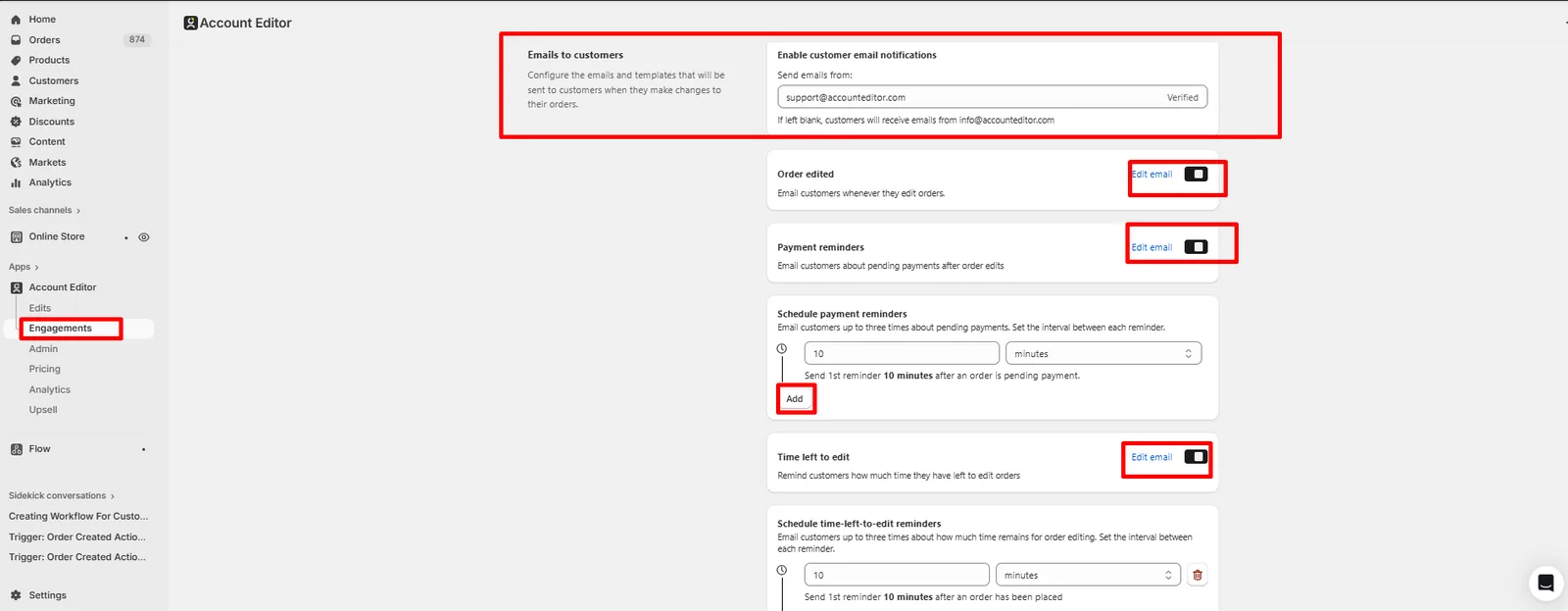
- Enable or disable customer emails
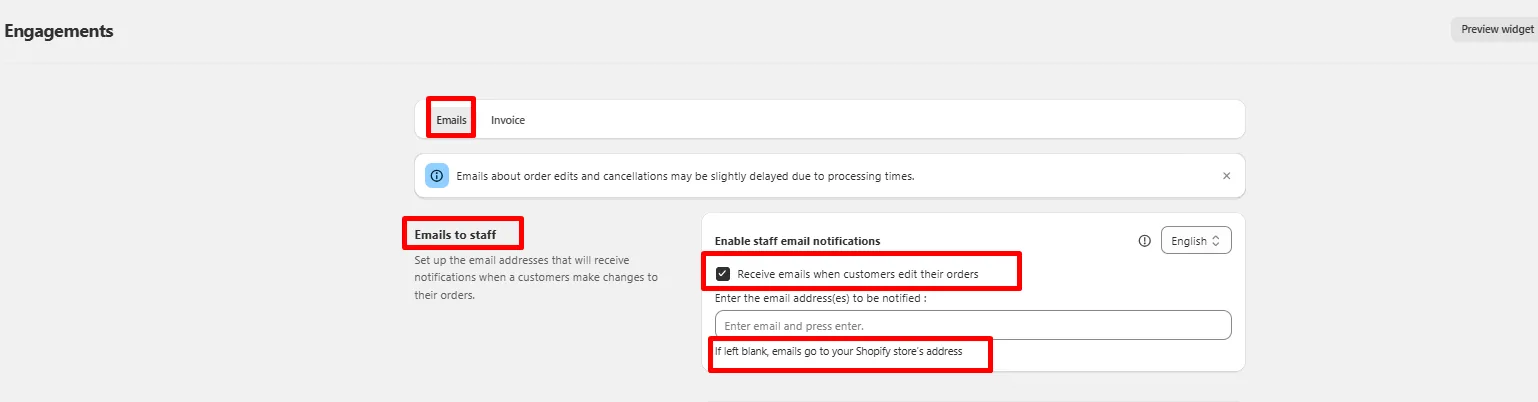
- Enable staff/internal notifications
- Control which events trigger emails
- Align messaging with Shopify defaults
- Emails can be edited as well according to merchant need
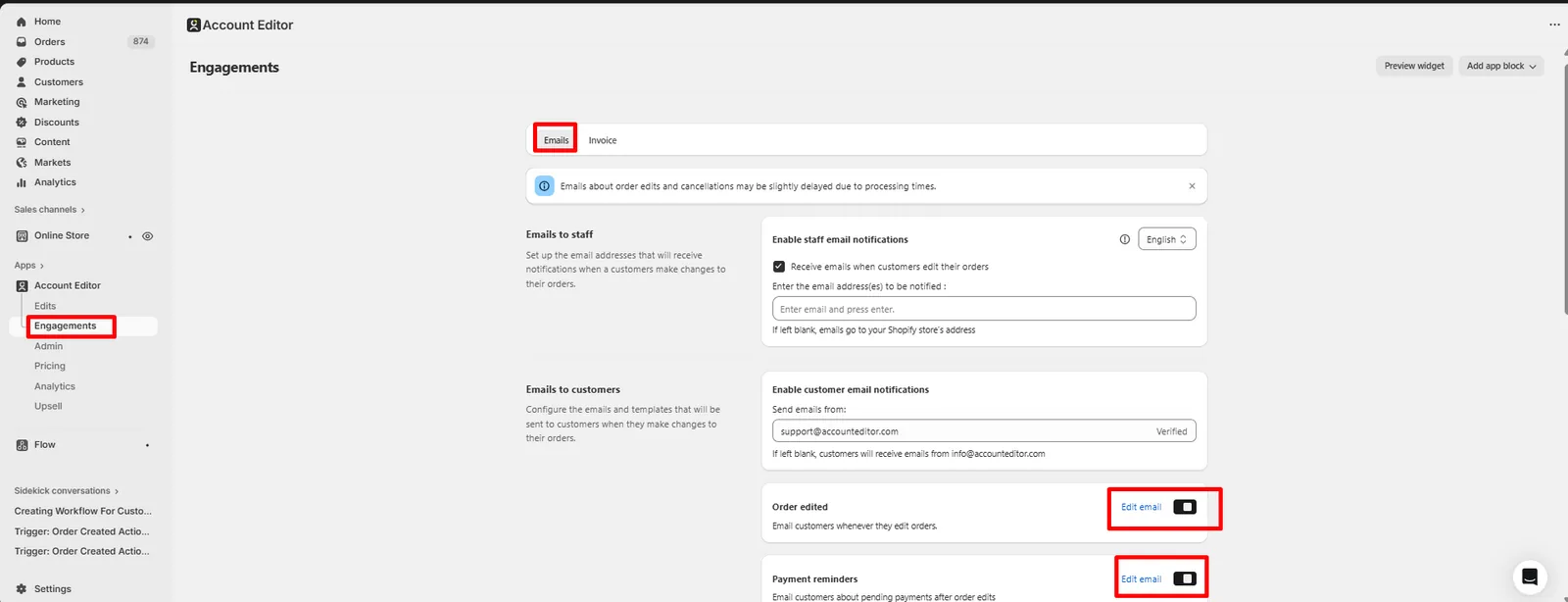
Email Notifications settings panel with toggles
Customer Email Notifications
What Customers Receive
Depending on configuration, customers may receive:
- Order edited confirmation
- Upsell acceptance summary
- Address or contact update notice
- Cancellation confirmation
- Payment pending
These emails:
- Reference the existing order
- Do not create a new order
- Reflect updated totals (if applicable)
Best Practices
- Keep customer emails enabled (recommended)
- Avoid overly technical language
- Ensure subject lines are clear (e.g. “Your order was updated”)
Tip: Customers trust emails more than on-screen messages — disabling them often increases confusion.
Staff / Internal Notifications
Staff notifications are optional but powerful. You can notify your team when:
- Orders are edited
- Upsells are added
- Shipping details change
- Cancellations are requested
Use cases:
- Manual review workflows
- Fraud prevention
- High-value order alerts
- COD or special handling orders
Relationship with Shopify Notifications
Account Editor respects Shopify’s native notification system. Important notes:
- Shopify’s “Order updated” email may still fire
- Account Editor emails add context (what changed and why)
- You should not disable Shopify emails unless intentional
Recommendation: Use Shopify emails for system events Use Account Editor emails for edit clarity
Real Merchant Scenarios
Scenario A — “Customer says they didn’t get confirmation”
Cause: Customer emails disabled in Account Editor. Fix: Enable post-edit customer notifications.
Scenario B — “Customer received too many emails”
Cause: Both Shopify and Account Editor emails firing without alignment. Fix: Adjust Shopify notification wording or disable redundant events.
Scenario C — “Team missed an address change”
Cause: Staff notifications turned off. Fix: Enable internal notifications for address updates.
FAQs
Can I edit the email text itself?
Yes — via Language & Localization settings.
Are these emails sent from Shopify or Account Editor?
They are triggered by Account Editor but sent via Shopify’s email infrastructure.
Will customers receive emails for every small change?
Only for configured events (you control this).
Can I disable emails for upsells only?
Yes — notifications are event-specific.
Common Issues & Fixes
| Issue | Cause | Fix |
|---|---|---|
| No email sent | Notification disabled | Enable relevant toggle |
| Duplicate emails | Shopify + Account Editor overlap | Align notification strategy |
| Wrong language | Localization missing | Update language values |
| Incorrect sender email | Shopify sender not set | Update Shopify email sender |
Advanced Tips
- Pair staff notifications with Shopify Flow for automation
- Use internal emails for high-risk or high-value orders
- Keep customer emails simple and reassuring
- Test by placing a real order before going live
Related Guides
Key Takeaway
Email notifications are not optional — they’re critical to trust. Well-configured Email Notifications:
- Reduce confusion
- Prevent support tickets
- Improve post-purchase confidence
- Keep staff aligned with customer actions