
Invoice Settings — Tax, Shipping
Purpose
Answer: “How do invoices update when orders are edited, upsells are added, or taxes and shipping change?” This article explains how Account Editor controls invoice accuracy, tax recalculation, shipping updates, and invoice layout after post-purchase edits.
Why This Matters
Invoices are customer-facing financial documents. If they’re incorrect, unclear, or inconsistent, merchants face:
- Customer disputes
- Accounting mismatches
- Tax compliance issues
- Support tickets around “wrong invoice” or “missing item”
Account Editor ensures invoices stay accurate, updated, and professional — even after order edits.
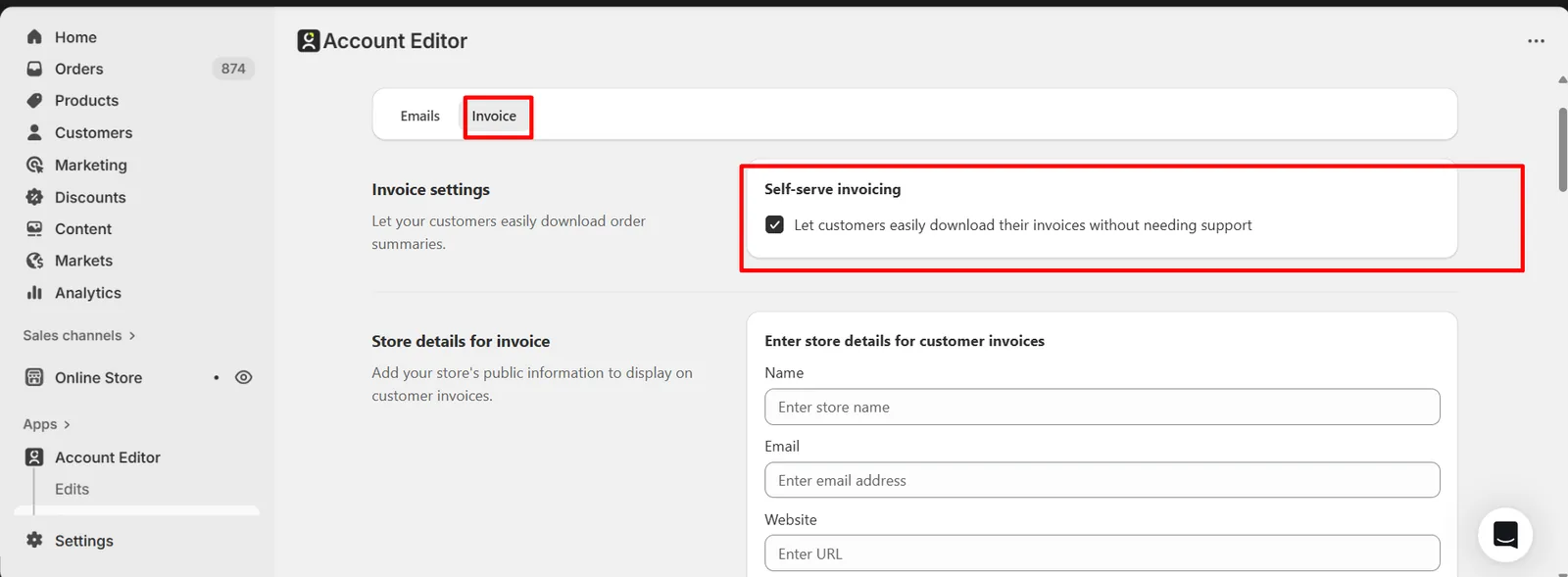
How Invoice Updates Work in Account Editor
Whenever a customer edits an order:
- Adds or removes items
- Changes quantity or variants
- Updates shipping method or address
- Accepts an upsell
Account Editor automatically triggers Shopify to:
- Recalculate subtotal
- Recalculate discounts
- Recalculate taxes
- Recalculate shipping
- Update the same invoice (no duplicates)
Important: Invoices always reflect the final order state, not intermediate or unpaid edits.
Tax Recalculation Logic
When Taxes Update Automatically
Taxes are recalculated when:
- Products are added or removed
- Quantities change
- Shipping address changes (state / country)
- Shipping method changes
Account Editor uses Shopify’s native tax engine, so:
- Tax is determined by address
- Tax / regional tax rules apply automatically
- No manual tax logic is required

| Scenario | Result |
|---|---|
| Same-state shipping | Tax applied |
| Inter-state shipping | Tax applied |
| Address updated post-purchase | Tax type recalculated automatically |
Best practice: Always enable Recalculate tax on edit to avoid incorrect invoices.
Shipping Recalculation on Invoice
If shipping recalculation is enabled:
- Adding heavier items may increase shipping
- Crossing free-shipping thresholds may reduce shipping
- Changing shipping method updates shipping cost
All changes are reflected immediately on the invoice.
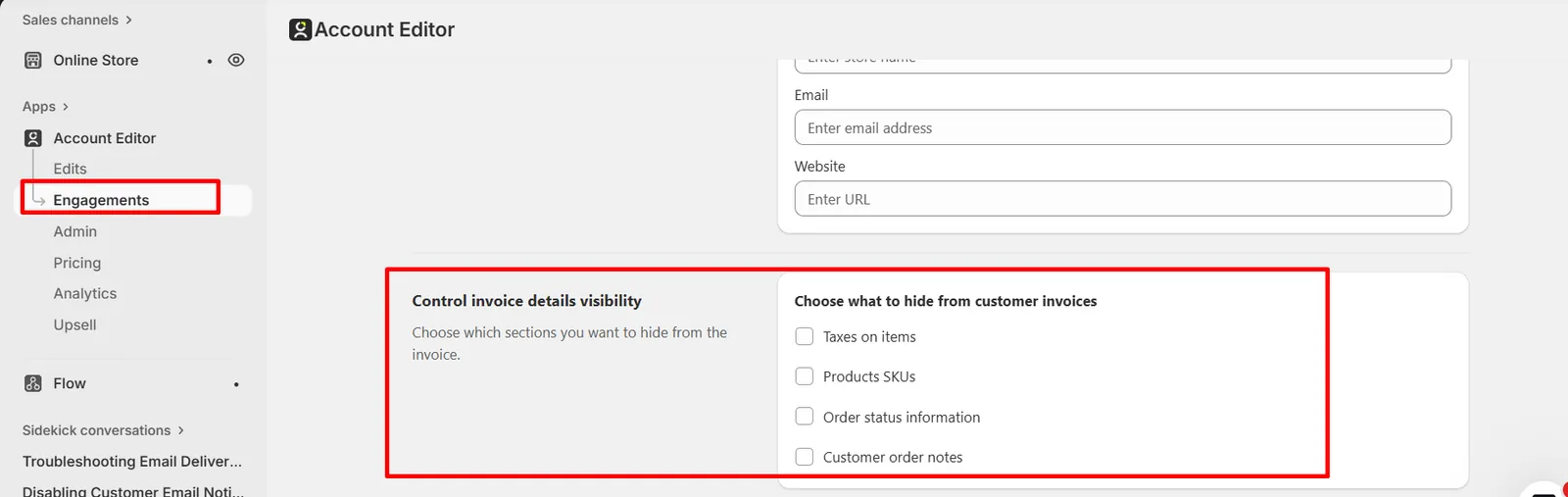
Reverse Unpaid Order Edits (Invoice Safety)
If a customer:
- Adds items
- Increases order value
- Fails to complete payment
And Reverse unpaid order edits is enabled:
- Order reverts to original state
- Invoice also reverts automatically
- No unpaid or partial invoice is shown to customers
This prevents:
- “Invoice shows items I didn’t pay for”
- Finance reconciliation issues

Invoice Templates — Layout, Branding & Customer View
Account Editor lets you control how the invoice looks, not just what it contains.
Change Invoice Template
Path: Account Editor Admin → Settings → Invoice Settings → Invoice Template You can choose which invoice layout customers see and download. Available templates:
- Default
- Primary
- Secondary
- Tertiary
Each template differs in:
- Layout structure
- Visual hierarchy
- Spacing and readability
Preview Customer Invoice
Before saving, you can preview the exact invoice customers will download. The preview shows:
- Store name & branding
- Receipt / Tax Invoice label
- Order ID
- Created & last updated date
- Billing & shipping addresses
- Item list (products, SKUs, gift cards)
- Subtotal, discounts, shipping, tax
- Paid amount and total due
- Footer message and store URL
What Customers See on the Invoice
Header
- Receipt / Tax Invoice
- Order ID (e.g., #1298)
- Invoice date
Addresses
- Billing address
- Shipping address
Items Table
- Product name
- SKU (if available)
- Price
- Quantity
- Line total
Totals
- Subtotal
- Discounts
- Shipping
- Tax
- Paid amount
- Total due
Footer
- Thank-you message
- Store contact link
How Templates Work With Order Edits
Key distinction:
- Template controls layout
- Order edits control values
When orders change:
- The same template remains
- Values update dynamically
- No duplicate invoices are created
Real Merchant Scenarios
Scenario A — “Customer added upsell, invoice updated”
Result:
- Item added
- Tax recalculated
- Shipping adjusted
- Invoice updated automatically
Scenario B — “Customer changed address, GST changed to IGST”
Result:
- Tax type updated
- Invoice reflects correct tax
- No manual intervention needed
Scenario C — “Customer didn’t pay for upsell”
Result:
- Edit reverted
- Invoice reverted
- No unpaid items shown
Common Issues & Fixes
| Issue | Cause | Fix |
|---|---|---|
| Wrong tax shown | Recalc disabled | Enable tax recalculation |
| Invoice shows unpaid items | Reverse unpaid edits OFF | Enable reverse unpaid edits |
| Shipping looks incorrect | Recalc disabled | Enable shipping recalculation |
| Invoice layout confusing | Wrong template | Switch template |
| Invoice not updating | Cached preview | Refresh preview |
Best Practices
Always enable:
- Tax recalculation
- Shipping recalculation
- Reverse unpaid edits
- Preview invoices after enabling upsells
- Use Primary or Secondary template for clarity
- Test invoices with:
- Address changes
- Discounts
- Upsells
Related Guides
Key Takeaway
Account Editor ensures invoices are: Accurate Automatically updated Tax compliant Professionally branded Even after post-purchase edits, upsells, and address changes.