
Targeting Rules, Pricing & Market Conditions
Purpose
Answer: “Who sees the upsell, at what price, and under what conditions?”
Why This Matters
Poor targeting is the fastest way to destroy upsell ROI.
Without proper rules:
- Discounts leak to low-value orders
- VIP customers see irrelevant offers
- Global stores show wrong prices or currencies
This article explains how Account Editor decides who sees an upsell and why — before it ever appears to a customer.
How Targeting & Pricing Works in Account Editor
Account Editor uses a rule engine that evaluates offers in real time:
- Customer context
- Order details
- Market & currency
- Inventory availability
- Discount eligibility
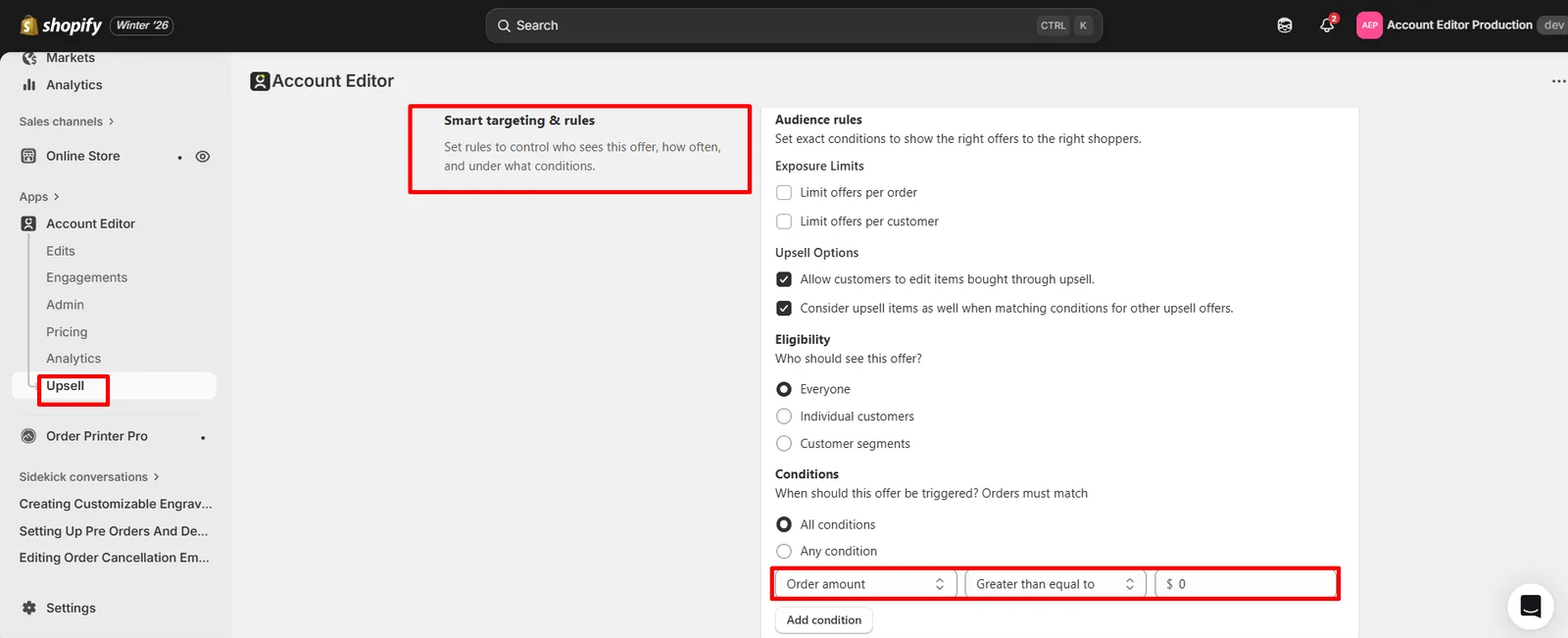
Rule Engine Logic (All vs Any)
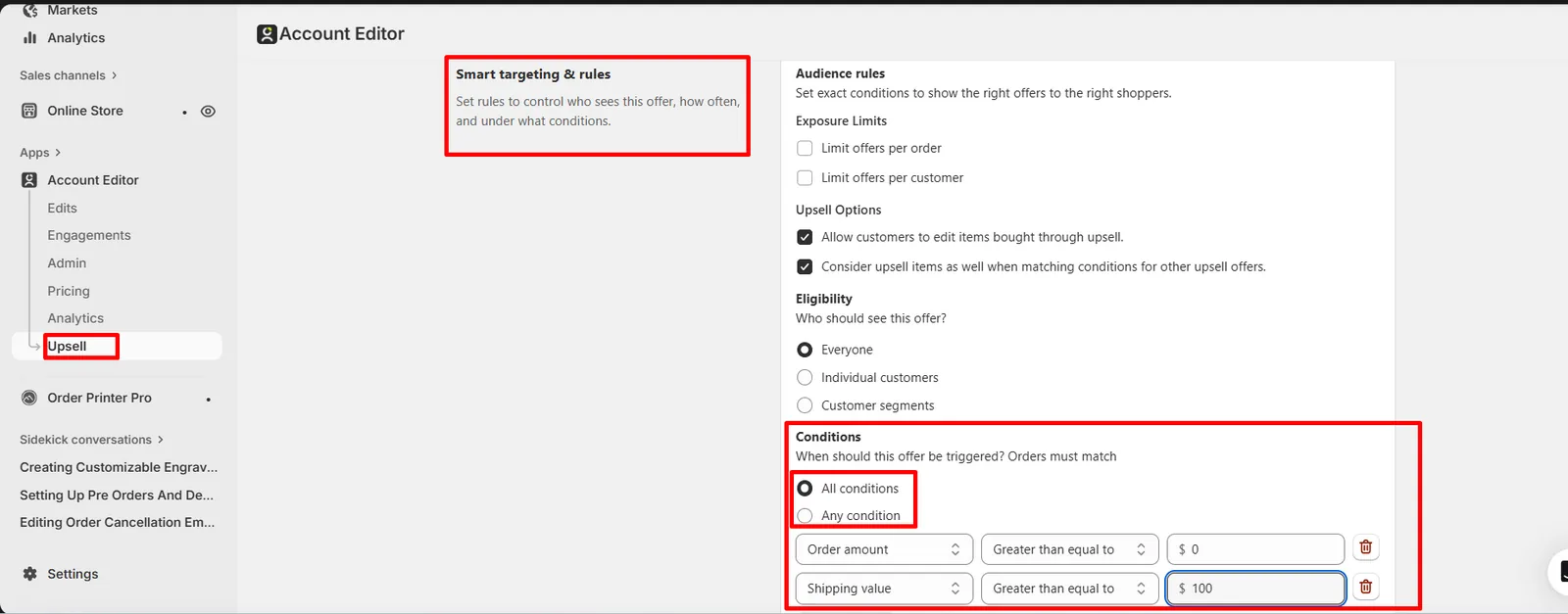
When defining conditions, you can choose:
1.All conditions must match (Strict targeting — best for high-value offers)
2.Any condition can match (Flexible targeting — best for discovery upsells) Example:
- Order value ≥ $75
- AND customer tag = VIP
Configuration Breakdown
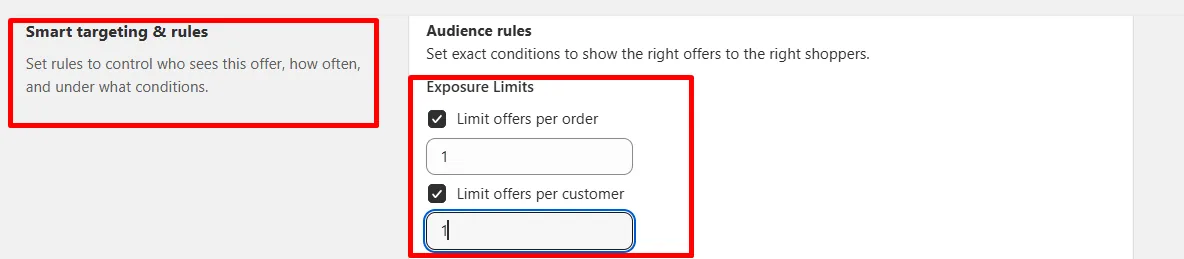
Audience Limits
Control how often an upsell appears.
Options include:
- Limit per order (avoid clutter)
- Limit per customer (prevent repetition)
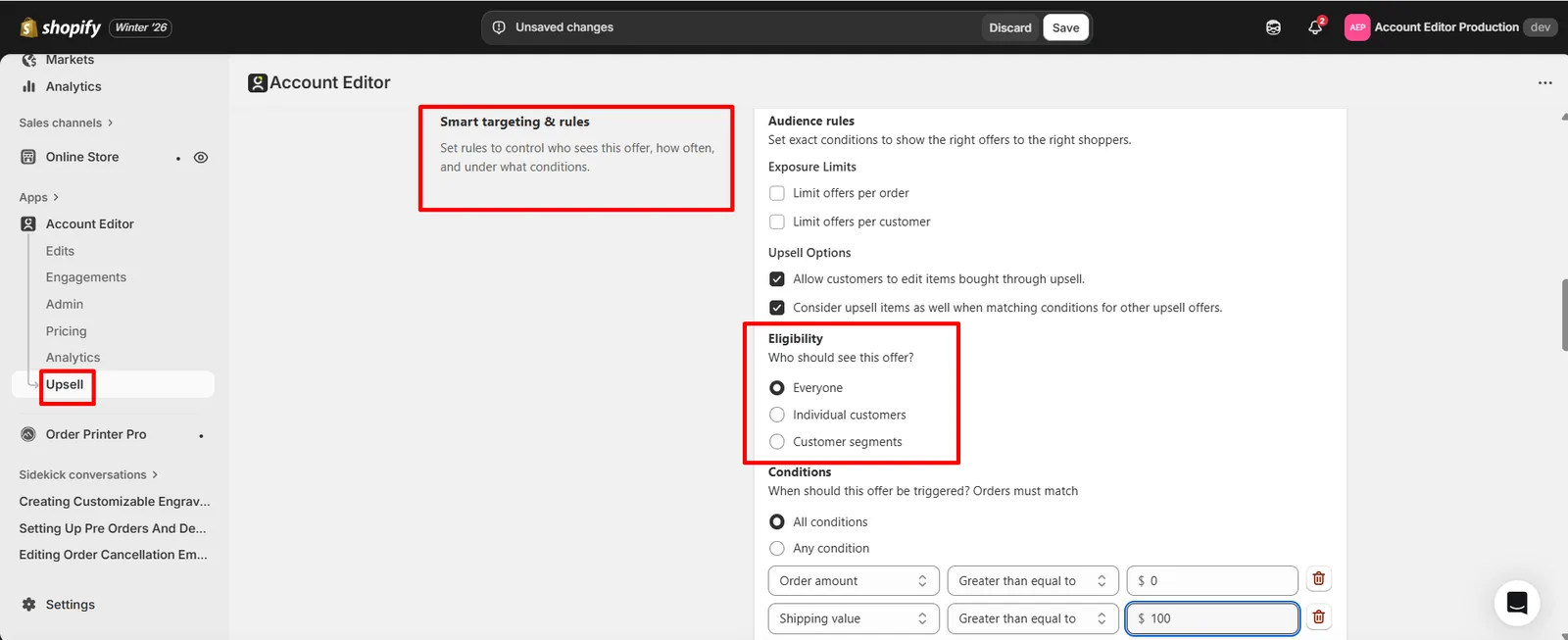
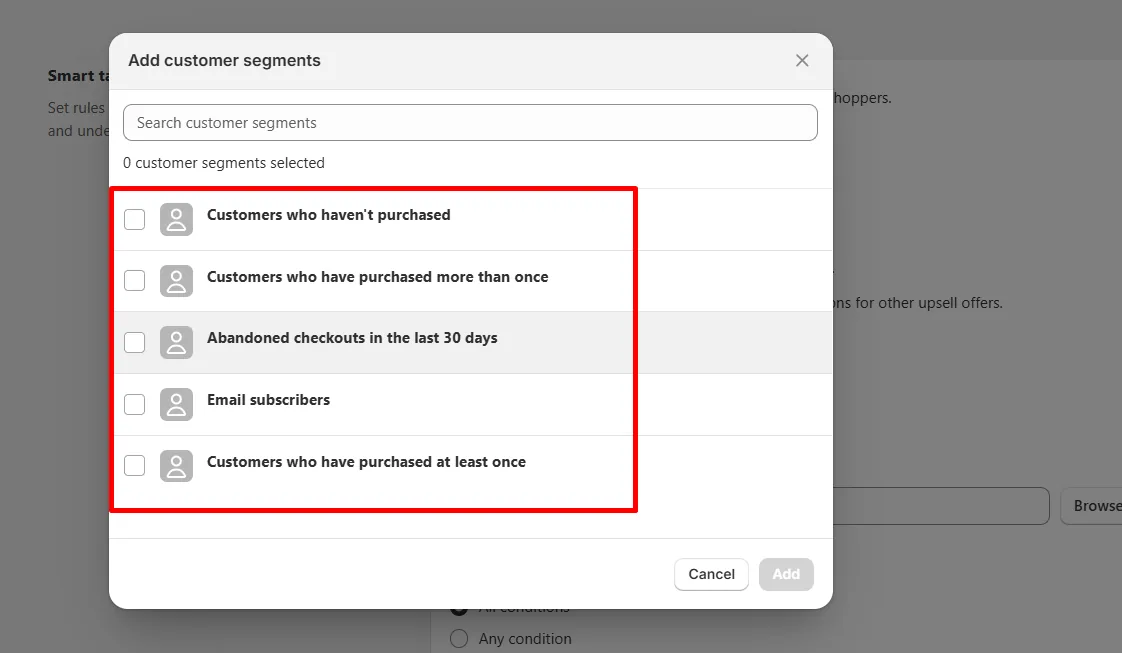
Eligibility Rules
Choose who can see the upsell.
Options:
- Everyone
- Individual customers
- Shopify customer segments
Examples:
- VIP-only accessories
- First-time buyer incentives
- High-spend customer bundles
Conditions (Order Logic)
Conditions define when an upsell triggers.
Common rules:
- Order amount ≥ $50
- Product tag contains “accessory”
- Customer tag = returning
Condition builder with order value rule
Discount & Pricing Strategy
Discounts are applied at runtime, not via manual codes.
Key points:
- No visible discount codes
- Applied only to upsell item
- Shopify recalculates totals automatically
Strategy guidelines:
- 0% → Premium positioning
- 10–15% → Best balance for most brands
- 20%+ → Clearance or acquisition

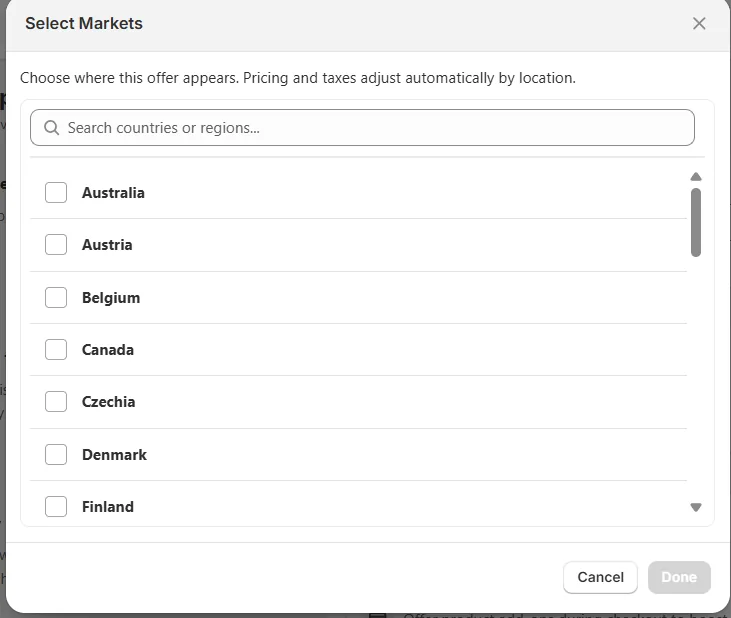
Market Targeting (Shopify Markets)
Market targeting controls where an upsell appears.
Account Editor automatically adjusts:
- Currency
- Tax
- Localization (if enabled)
Use cases:
- Seasonal offers by region
- Excluding high-VAT countries
- Market-specific pricing logic

Real Merchant Scenarios
Scenario A — VIP-only Upsell
- Eligibility: Customer segment = VIP
- Condition: Order ≥ $100
- Result: Higher conversion, no discount leakage
Scenario B — Seasonal Geo-Targeted Offer
- Market: US + Canada
- Discount: 15%
- Result: Region-specific promo without currency confusion
FAQs
Why is the price different per country?
Shopify Markets applies currency conversion, taxes, and duties automatically.
Why didn’t my discount apply?
Most common causes:
- Discount set to 0%
- Another Shopify auto-discount overrides it
- Market mismatch
Common Issues & Fixes
| Issue | Cause | Fix |
|---|---|---|
| Currency rounding | FX conversion | Expected Shopify behavior |
| Offer not showing in region | Market not enabled | Enable market in Shopify |
| Discount missing | Overlapping discount | Disable other auto-discounts |
Outbound links
→ Creating Upsell Offers (End-to-End Setup)
Downstream optimization → A/B Testing & Upsell Analytics
Support → Upsell FAQs & Troubleshooting