
Introduction to Upsells (Surfaces, Timing & Eligibility)
Increase average order value by showing relevant upsell offers after checkout, when customers are already engaged and ready to make changes to their order.
Why This Matters
Post-purchase upsells are one of the highest-converting revenue opportunities in ecommerce because:
- The customer has already completed payment
- Trust is already established
- No checkout friction exists
1. What Is a Post-Purchase Upsell in Account Editor?
A post-purchase upsell is an offer shown after checkout, when a customer:
- Edits their order
- Reviews order details
- Attempts to cancel
- Interacts with the Order Status or Thank You page
Upsells are added directly to the existing Shopify order, not as a new checkout or draft order.
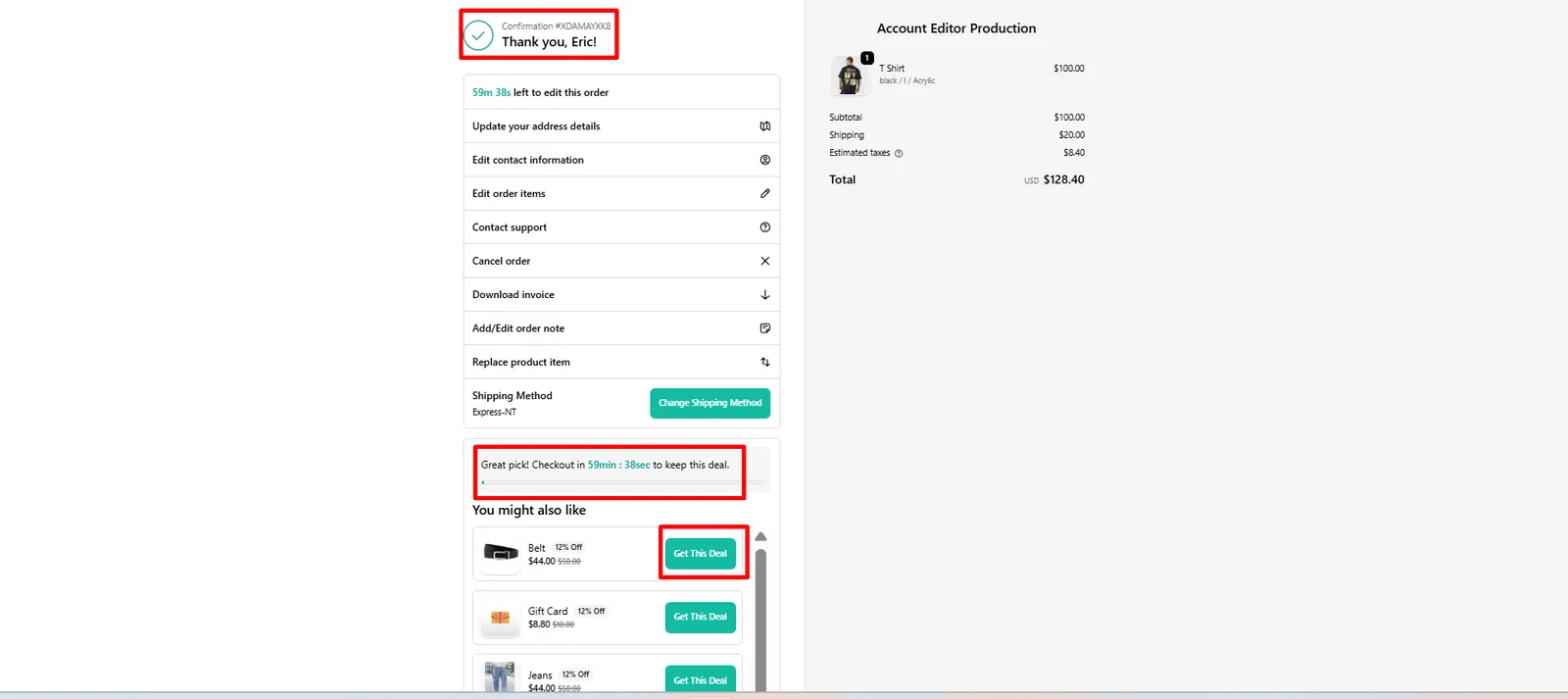
2. Where Upsells Appear (Upsell Surfaces)
Account Editor supports multiple upsell surfaces:
In Account Editor, upsells are controlled by surfaces — defined moments in the customer journey where offers are allowed to appear.
Each surface has its own:
- Eligibility rules
- Priority order
- Analytics tracking
- A/B testing capability
Supported Upsell Surfaces
Thank You Page
- Appears immediately after checkout
- High visibility and engagement
- Best for accessories or add-ons
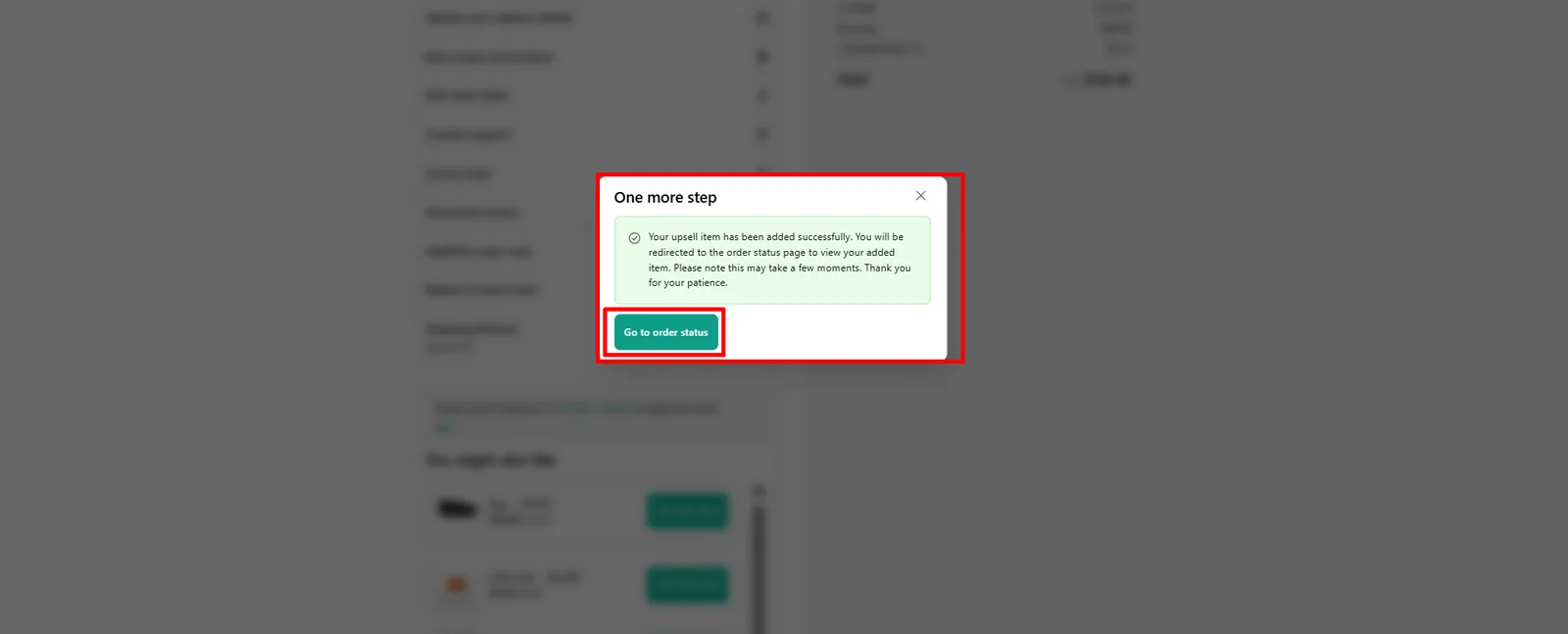
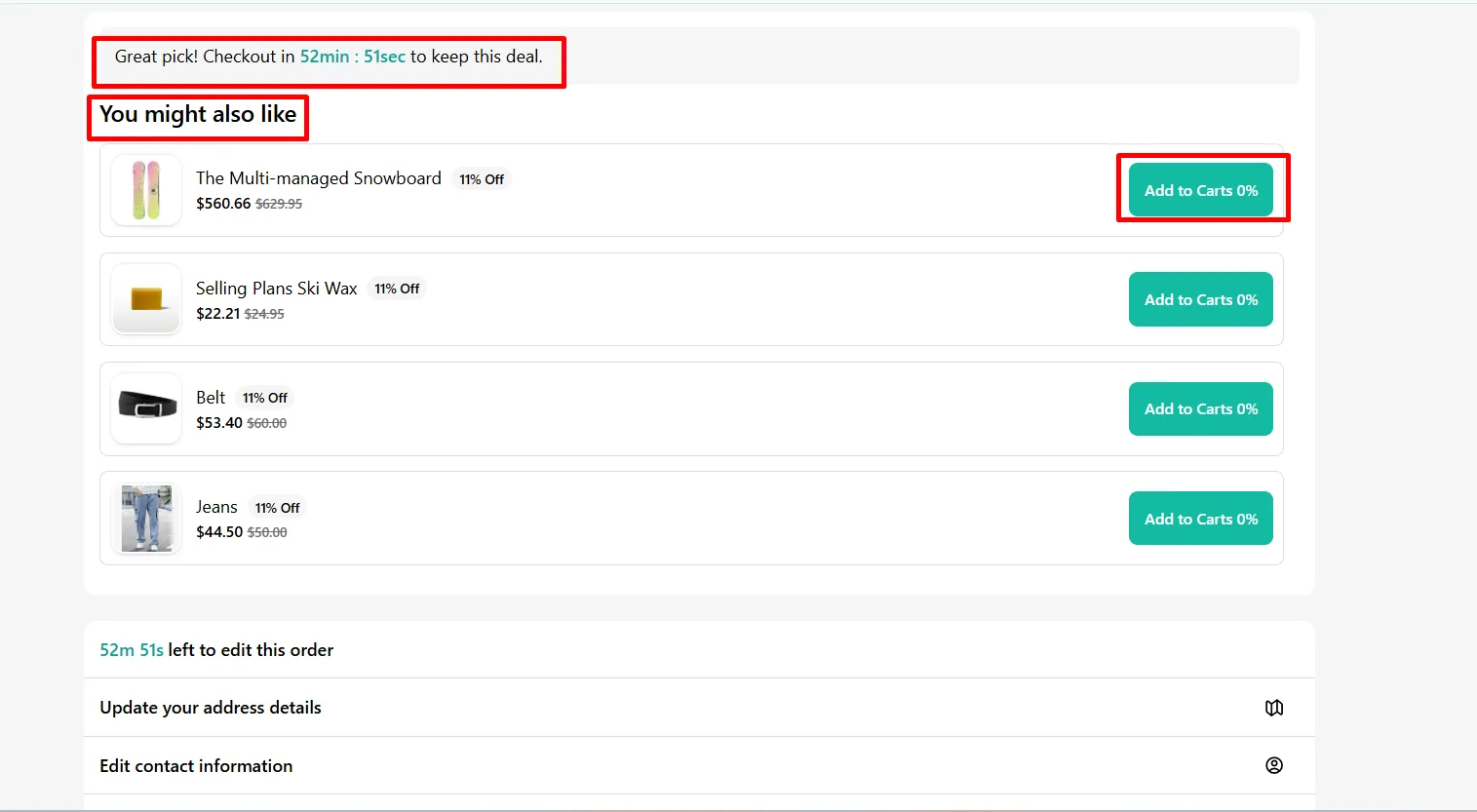
Order Status Page
- Shown when customers revisit their order
- Ideal for delayed decisions or repeat buyers
During Order Editing
- Appears when customers edit items, address, or shipping
- Contextual and intent-based
Cancellation Retention Flow
- Shown when a customer tries to cancel
- Used to save the order with incentives
3. When Upsells Are Shown (Timing Rules)
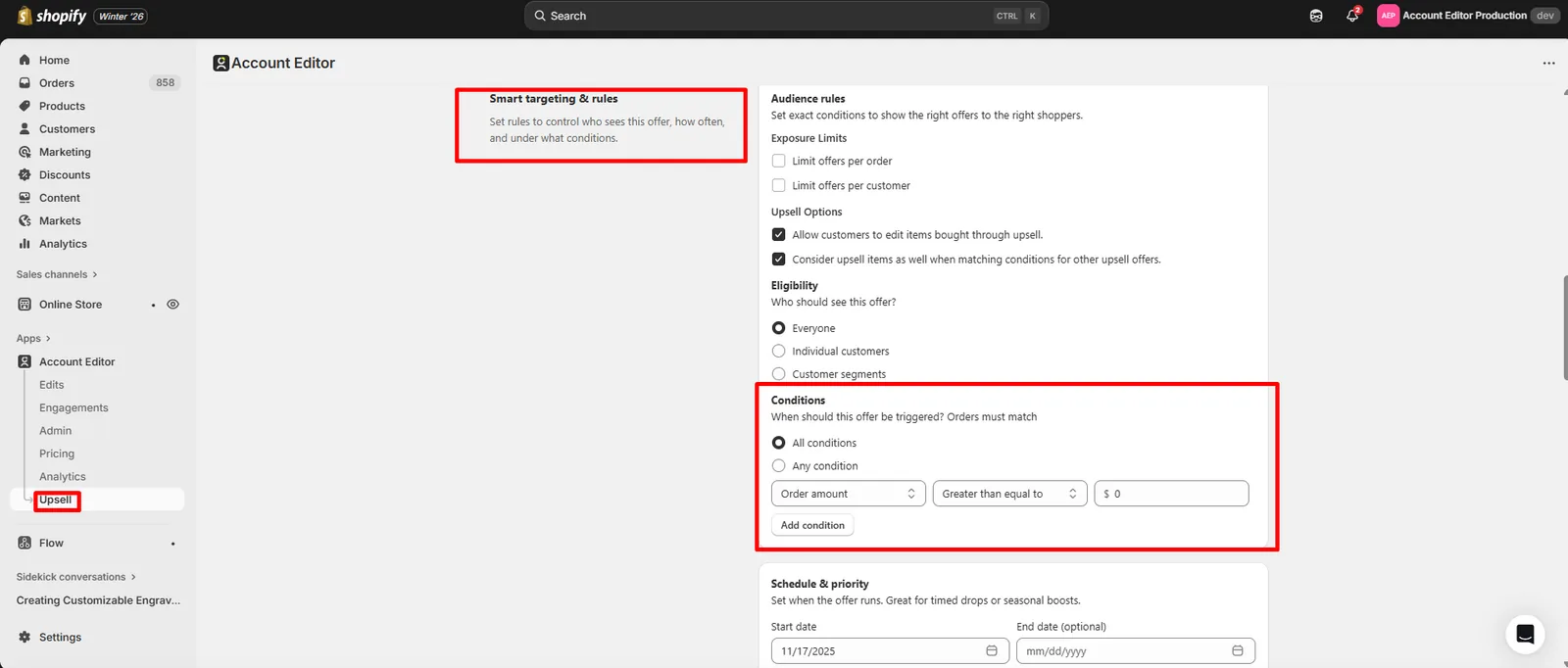
Upsells are shown only when all required conditions are met, including:
- The order is eligible for editing
- Upsells are enabled for the surface
- Smart Targeting & Rules conditions pass
- The edit or cancellation window is still open
Common timing options include:
- Immediately after checkout
- During the edit window
- Before cancellation confirmation
- On checkout too (Shopify Plus)
You can control when and how often upsells appear.
Timing is fully controlled using:
- Display Surface selection
- Smart Targeting & Rules
- Edit window duration
- Cancellation retention settings
4. Upsell Eligibility Rules
Upsells may be restricted based on:
- Order status (e.g., unfulfilled)
- Product eligibility (subscriptions, bundles, restricted items)
- Customer segments or tags
- Market or country
- Order value thresholds
- Inventory availability
If any check fails, the upsell is hidden automatically — no broken experiences, no partial edits.
5. How Upsells Are Added to Orders
When a customer accepts an upsell:
Account Editor adds the item to the existing order
- The product is added to the existing Shopify order
- Shopify recalculates:
- Subtotal
- Discounts
- Taxes
- Shipping (if enabled)
- The updated order is saved
- The action is logged in the Shopify order timeline
6. Product Types & Upsell Limitations
Bundles
- Upselling bundle components is usually supported
- Upselling complementary products is recommended
Subscription products
- Upsell behavior depends on the subscription app
- Many subscription items can be added post-checkout
Digital products
- Generally safe to upsell
Out-of-stock items
- Upsells are hidden automatically
7. Real Merchant Scenarios
Scenario A — “Customer adds accessory while fixing address”
Result: Upsell accepted → shipping recalculated →order updated
Scenario B — “Upsell not shown to some customers”
Possible causes:
- Eligibility rules not met
- Product restricted
- Inventory unavailable
Scenario C — “Upsell caused shipping price change”
Cause: Added item increased weight or crossed free-shipping threshold. Result: Expected Shopify behavior.
8. Recommended Setup (Best Practices)
- Start with simple complementary products
- Enable upsells during order editing
- Avoid upselling restricted product types
- Combine upsells with shipping recalculation
- Monitor upsell acceptance analytics
9. FAQs
Do customers need to re-enter payment details?
No — upsells are added to the existing order.
Can upsells change shipping or taxes?
Yes — Shopify recalculates automatically.
Can I disable upsells for certain orders?
Yes — use eligibility and targeting rules.
Can upsells be shown multiple times?
Yes — based on timing and rule configuration.
10. Common Issues & Fixes
| Issue | Cause | Fix |
|---|---|---|
| Upsell not showing | Rule not met | Review conditions |
| Upsell adds wrong price | Discount rules | Check pricing |
| Shipping changed | Weight/value change | Expected behavior |
| Upsell blocked | Product restricted | Adjust eligibility |
After Checkout — Shopify Integration & Control
The After Checkout surface is controlled directly by Shopify and can only be managed by one app at a time. This section ensures Account Editor is the active app so your upsells appear correctly and track accurately.
Overview
Shopify allows only one app to manage the After Checkout (post-purchase) page. If another app (loyalty, reviews, surveys, etc.) controls this surface:
- Account Editor upsells will not render
- Analytics and A/B testing data will not track
Account Editor must be explicitly selected as the active app.
After Checkout Setup
This is where you connect Account Editor to Shopify’s post-purchase extension. If another app is active, Shopify shows this message:
Only one app can manage the after checkout page. To enable this feature, select Account Editor in your Shopify checkout settings.
This means Shopify has assigned the surface to a different app. To show Account Editor upsells, you must reassign control.
How to Enable Account Editor for After Checkout
Follow these steps in Shopify Admin:
- Go to Settings → Checkout → Post-purchase page
- Locate After Checkout Extension
- If another app is listed, click Change app
- Select Account Editor
- Click Save
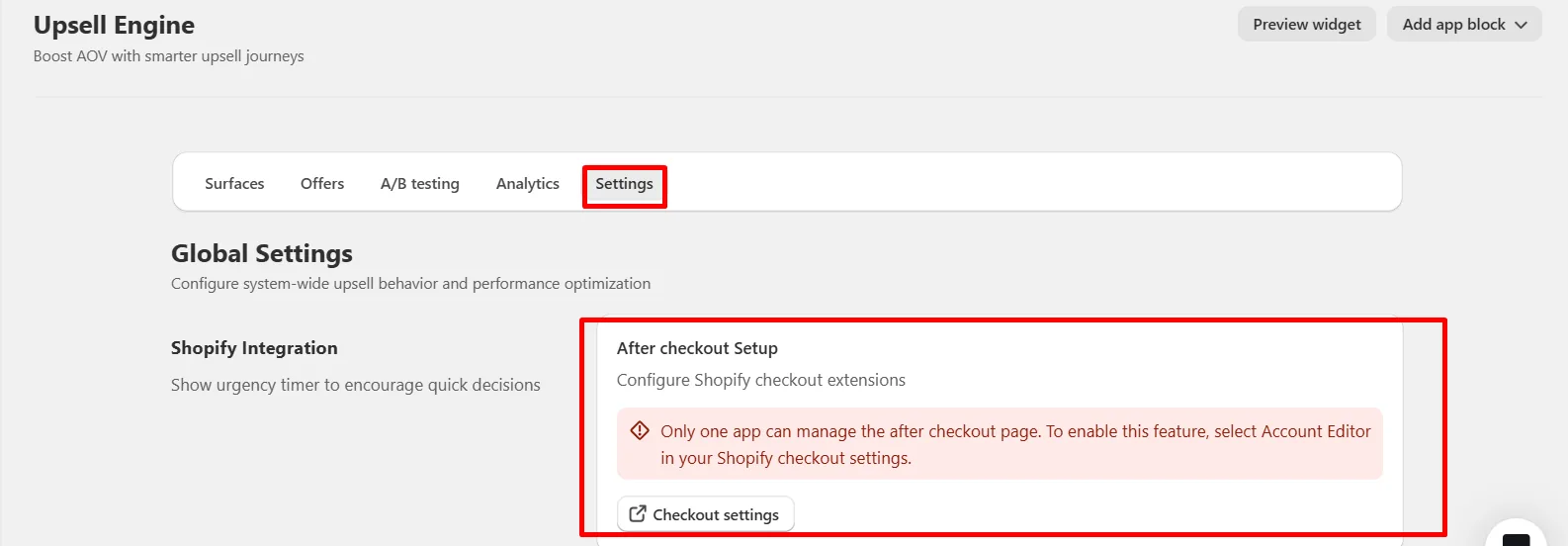
Once saved, Account Editor immediately takes control of the After Checkout surface.
When Successfully Enabled
You’ll know setup is correct when:
- The warning banner disappears
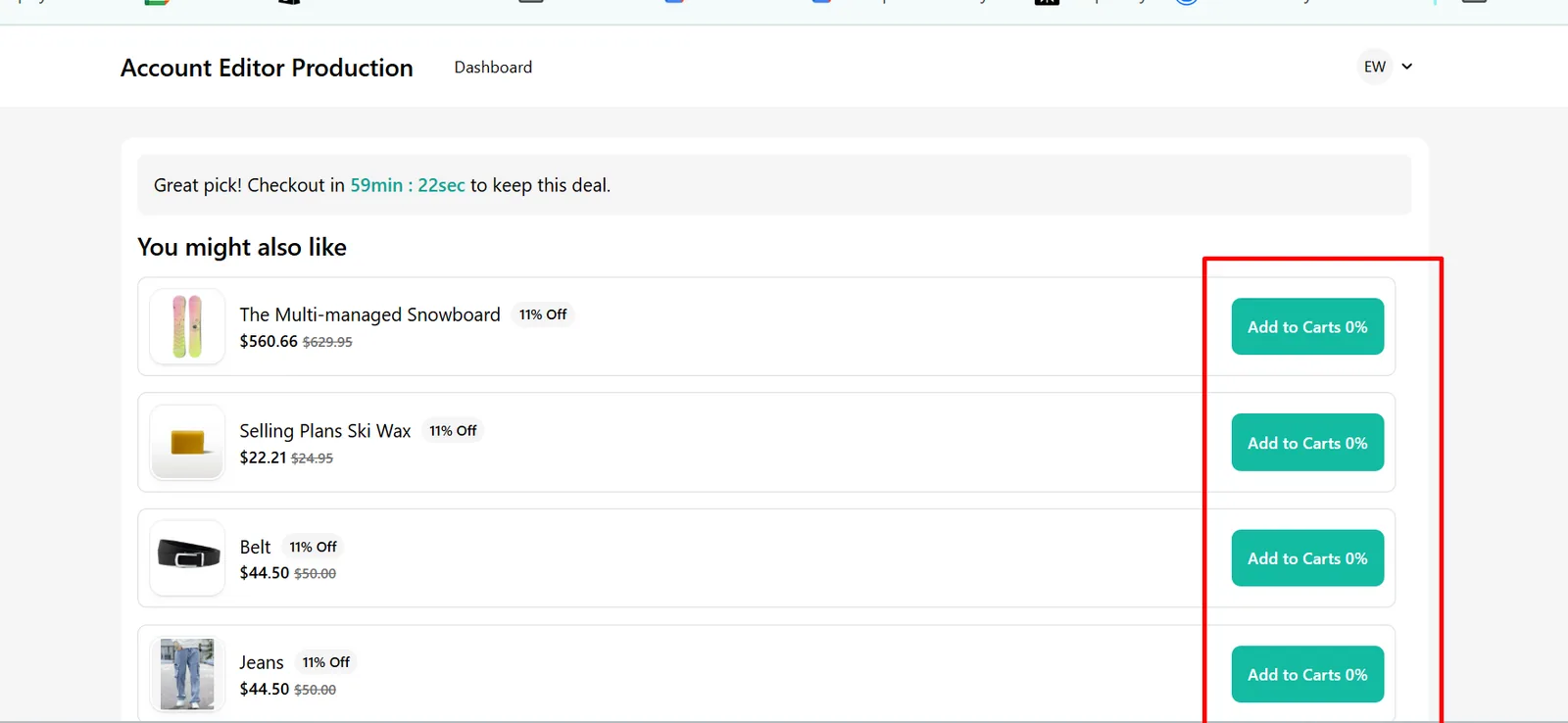
- After Checkout upsells appear immediately after payment
- Surface performance data starts showing in Analytics
These offers now:
- Run through Shopify’s native checkout extension
- Track correctly under Analytics → Surface Performance
- Can be used in A/B Testing
Why This Setting Matters
| Setting | Benefit |
|---|---|
| After Checkout Activation | Shows upsells between payment and confirmation |
| Single-App Control | Prevents other apps from overriding widgets |
| Analytics Integration | Ensures accurate revenue tracking |
| A/B Testing Compatibility | Allows fair surface comparisons |
Common Setup Issues
| Issue | Cause | Fix |
|---|---|---|
| “Only one app can manage After Checkout” | Another app controls it | Change app → select Account Editor |
| Upsells not showing | Account Editor not active | Re-select Account Editor and save |
| Changes not updating | Admin cache | Refresh Admin and save again |
When to Use After Checkout
Use this surface when you want to:
- Offer impulse add-ons immediately after payment
(e.g. gift wrap, express shipping)
- Keep checkout clean while still increasing AOV
- Show fast, low-friction offers with high intent
Summary
| Setting | Function |
|---|---|
| After Checkout Extension | Connects Account Editor to Shopify’s post-purchase page |
| Active App Status | Confirms Account Editor controls the surface |
| Error Banner | Appears when another app occupies the slot |
Once enabled, Account Editor can manage upsells across:
- Checkout Page (Shopify Plus)
- After Checkout Page
- Thank You Page
- Order Status Page
* All data flows automatically into Analytics and A/B Testing.
How This Connects to Analytics & A/B Testing
Each upsell surface is tracked independently in Analytics. This allows you to:
- Compare conversion rates by surface
- Identify where customers are most receptive
- Run A/B tests on one surface without affecting others
This data-driven structure ensures upsells scale without guesswork.
Outbound links
Primary next steps
→ Creating Upsell Offers (End-to-End Setup) (“Now build your first upsell”)
→ Upsell FAQs & Troubleshooting (“If upsells aren’t appearing”)