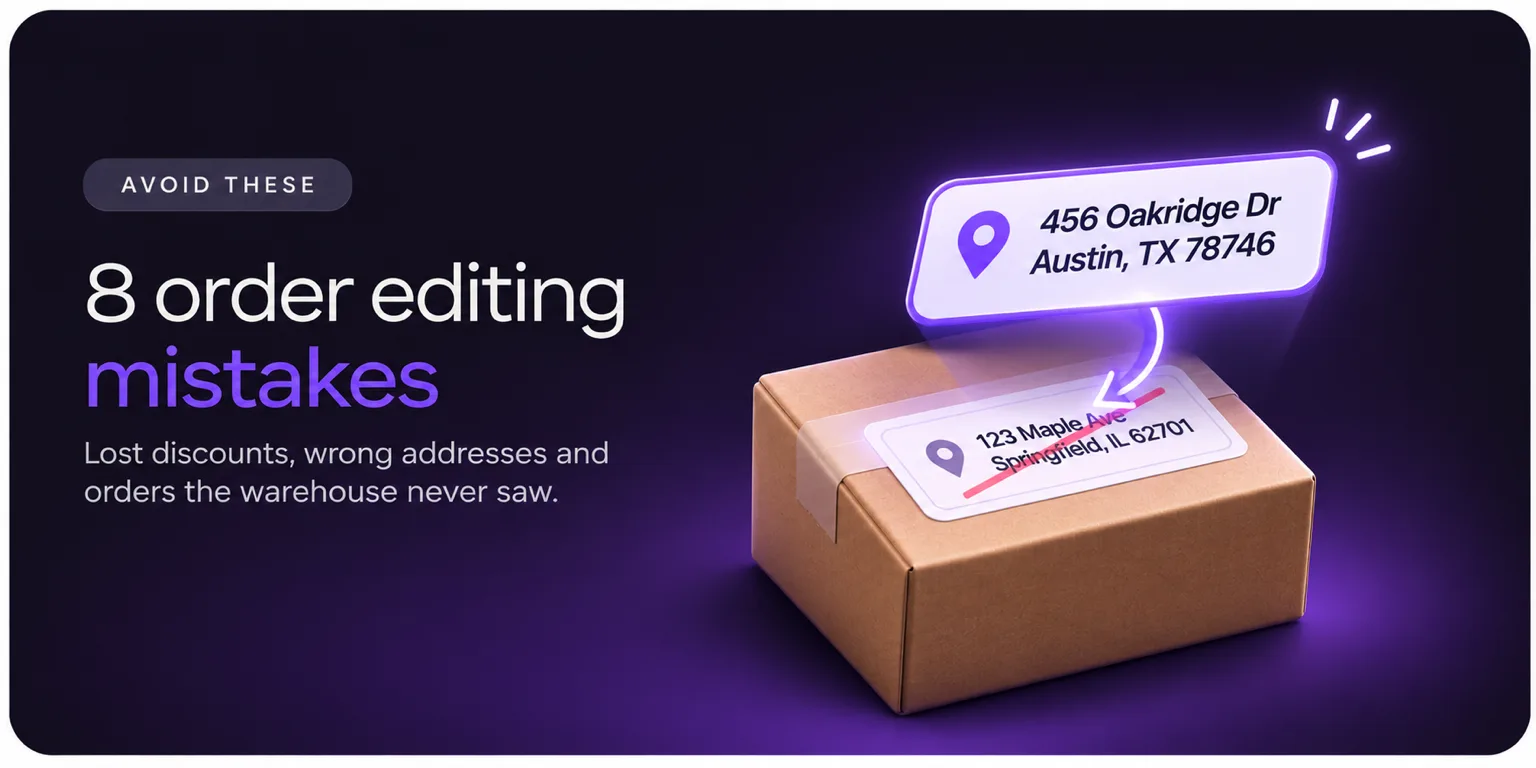
Editing an order sounds easy. Open it, change the thing, save. Then the customer gets a surprise invoice, a discount vanishes, or the warehouse ships the version of the order that existed before the edit.
Most of these problems are not hard to prevent once you know where they come from. They come from how Shopify handles edits, how your warehouse reads orders and how customers behave. This guide covers the eight mistakes we see most often in how stores edit orders, and a simple fix for each.
Why Order Editing Goes Wrong
Shopify's editor is designed for staff and is powerful, but it assumes you will check the side effects. Its own help page tells you to read the considerations first, "to understand how changes affect payments, fulfillment, and reporting". Most mistakes below come from skipping that step.
For the process side (how to treat change requests across your team), see our guide on mistakes merchants make when handling order change requests. This post covers the hands-on mechanics.
Mistake 1: Editing the Order and Forgetting the Payment
What happens: A customer asks for a larger size that costs $10 more. You edit the order. The total rises, but nobody pays the difference. Or the total falls and the refund never goes out.
Shopify's guidance is clear that after saving, "if additional payment is required, then you can send the customer an updated invoice", and "if the order total decreases, then you can issue a refund". Both are manual steps. A customer who ignores the invoice leaves you with an order that doesn't add up.
There is a second catch. If you collect payment after an edit, the customer "won't have accelerated checkouts available through the new checkout", and the order's fraud analysis can change. Orders paid with Shop Pay Installments can't be edited at all.
How to avoid it:
Decide your rule in advance: how long an unpaid invoice stays open, and what happens to the order after that.
Add "payment settled?" to your edit checklist, and check before the order is released to the warehouse.
If you use an app, look for one that handles price differences in the edit itself. Account Editor's Hold & Revert reverts unpaid edits when the window ends, so the original order stands.
Mistake 2: Assuming Discounts Will Recalculate
What happens: You swap an item on an order that used a discount code. The code's effect is wrong afterward, and the customer sees a different total than they expected.
Shopify says "some discounts aren't recalculated after you edit an order." It also says discount codes, scripts, automatic discounts and shipping discounts can't be added, edited or removed on an existing order, and an order can have only one custom discount applied to the entire order. If the order has a bundle, you can't add or edit an order-level custom discount.
How to avoid it:
After every edit on a discounted order, read the total line by line before you save.
Keep a short note of orders where a code applied, so you can check them first.
If many of your orders use codes or bundles, test those cases in a trial before you launch any self-service editing. Account Editor's discount auto-update, for example, does not work on bundle orders, so ask every app you test how it deals with them.
Mistake 3: Not Checking Shipping and Tax After an Edit
What happens: A customer changes the delivery address to another state. The order total changes in ways you didn't plan. Or you add a custom item and the tax is missing.
Shopify states that "shipping methods and rates aren't recalculated when you edit an order", though you can add a custom shipping charge. Duties and taxes aren't calculated on custom items. Taxes also recalculate when you change the shipping address, and they stay at their original amounts until you click Update order.
How to avoid it:
Treat an address change to a different region as a bigger edit than a typo fix. Check shipping and tax before you save.
Avoid custom items for products that should carry tax. Add the real product instead.
Write down which edits need a second look (region changes, international orders) and train the team on them.
Mistake 4: Letting the Warehouse Ship the Old Order
What happens: You fix a customer's address in Shopify. Your 3PL had already imported the order. The parcel goes to the old address.
This is the most expensive mistake on the list, and it is easy to miss because everything looks right in Shopify. Shopify warns: "If your fulfillment services don't work with order edits, then editing an item can cause missed or incomplete orders." It also says apps may not recognize edits, so their data can become incorrect.
How to avoid it:
Ask your 3PL how it reads orders. A pull-based system imports on a schedule. A push-based one receives orders immediately.
For pull-based systems, set the import delay longer than the edit window. For push-based ones, hold the fulfillment trigger until the window closes.
Test it. Place an order, edit the address, and confirm the shipping label shows the new one.
Account Editor documents this behavior and has setup guides for common 3PL and OMS systems. The edit still happens in Shopify, so your warehouse system must read it after the window ends.
Mistake 5: Skipping Address Validation
What happens: The customer fixes one typo and adds another. Or your team types an address from an email with a missing apartment number. The label prints, the carrier can't deliver, and you pay.
Loqate's research put failed deliveries at about 8% of US orders, at roughly $17 per failed order (2021 data). FedEx's US address correction fee rose to $25.50 in January 2026. Other carriers charge similar fees, and the amounts differ by source, so check your own account.
How to avoid it:
Validate every address change, whether a customer or an agent makes it.
Limit what customers can edit. A domestic-only store can allow a zip code fix and block a country change.
Add a second look for apartment and unit numbers, which are a common miss.
Account Editor runs address validation on edit and offers verified suggestions as the customer types. Each plan includes a free allotment (50, 200, 350 or 500), then $0.01 to $0.03 per validation.
Mistake 6: Getting the Edit Window Wrong
What happens: A window that is too short frustrates customers who needed an hour more. A window that is too long lets edits arrive after the warehouse picked the order. A fixed window ignores weekends and cutoffs, so a Friday-night order shows a window that closes before anyone is at work.
How to avoid it:
Write down three times: when the order reaches your warehouse, when picking starts, and when the label is created. The window should close before the first one you can't undo.
Add a buffer. If your 3PL imports every 15 minutes, a 10-minute window is a bad idea.
Match the window to your calendar. Account Editor's Smart Window follows fulfillment days, a daily cutoff with a buffer, paused picking hours and your warehouse timezone.
Show the deadline to the customer, in the confirmation email and on the order page.
Mistake 7: Promising Changes Shopify Won't Allow
What happens: A customer asks for a change. A well-meaning agent says "sure". Then the order turns out to be fulfilled, a local delivery, or a bundle, and the change can't be made. Now you have an apology and a worse ticket.
Shopify's rules say:
If an order has fulfilled items, you can't remove them or change their quantity.
Orders with local delivery as the delivery method can't be edited, and you can't change the method (for example, from shipping to pickup).
You can't add a product bundle to an order, or increase a bundled item's quantity beyond the original.
Orders imported into your Shopify admin can't be edited.
Orders in Pending payment status may not allow edits to items and discounts.
Shopify lists all of this on its considerations page.
How to avoid it:
Put these limits in a short internal cheat sheet, so agents answer correctly the first time.
Use order tags and rules so blocked orders don't show an edit option to customers. A button that fails creates a worse ticket than no button.
Tell customers up front what can and can't change, and offer a fallback, such as a cancellation or a return after delivery.
Mistake 8: Not Telling the Customer and Not Tracking Edits
What happens: An edit is made and nobody tells the customer. They check their order, see something different and write in. Meanwhile your reports are confused, because an edit made after the order day "displays as a separate order in your reports", according to Shopify's considerations page.
How to avoid it:
Send a clear confirmation after each edit, with the new details and any payment owed.
Keep a simple log of who changed what and why, even if it is a spreadsheet.
When you review sales or margin, remember the reporting quirk above, and know which edits you made.
Count your edits. Tag your support tickets by type for 30 days, then check how many are order changes. That number shows whether self-service is worth setting up. Our guide on reducing customer service tickets on Shopify shows how to do it.
A Quick Safe-Edit Checklist
Use this before you save any manual edit:
Check | Question |
|---|---|
Status | Is the order unfulfilled and not on local delivery? |
Payment | Will the total change? Is the invoice or refund planned? |
Discounts | Did a code or bundle apply? Is the total right? |
Shipping and tax | Did the address change region? Is shipping updated? |
Address | Is it validated, with a unit number? |
Warehouse | Has the 3PL already imported this order? |
Customer | Did you send a confirmation of the new details? |
When to Move From Manual Edits to Self-Service
Hand edits are fine at low volume. They become a problem when requests pile up, when edits arrive outside work hours, or when your cutoff is tight. At that point, a self-service app lets shoppers fix simple mistakes inside rules you set, and your team handles only the exceptions.
Account Editor is built for that: shoppers change contact info, address, variant, quantity and add-ons from the order status page, and you control what stays editable. It has real limits, too. There is no free plan (only a 14-day trial), partially fulfilled orders can't be edited, and checkout editing needs Shopify Plus.
Make safe edits the default Let shoppers fix small mistakes inside your rules, with validated addresses and fulfillment-aware windows. Try it free for 14 days.