
Thank You Page — Add Account Editor Widgets After Checkout
The Thank You Page is the very first screen your customer sees immediately after completing a purchase.
With Account Editor, you can display helpful widgets here so customers instantly know they can:
- Fix mistakes (address, items, contact info)
- View upsell suggestions
- See how long they can still edit their order
This article explains how to set it up, what options you have, and how each widget works.
Adding Account Editor Blocks to the Thank You Page
- Go to Account Editor → Dashboard
- Click Add app block → Thank You Page
- Choose Block Extensions or Individual Extensions
- Click SAVE
- Go to Account Editor → Dashboard.
- Click on Add app block → Thank You Page.
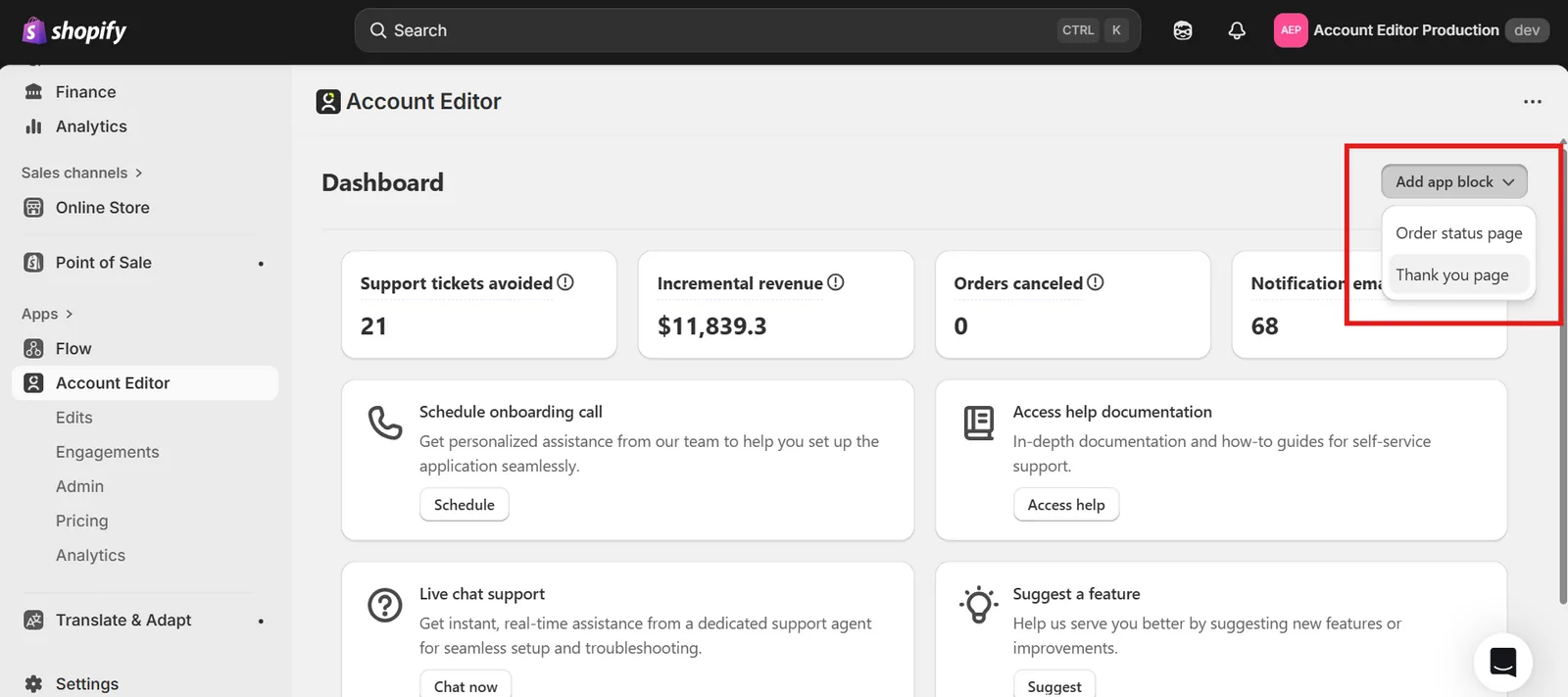
- This will let you choose which Account Editor widgets you want to appear on the Thank You Page.
Block Extensions on the Thank You Page
Block Extensions bundle multiple actions or recommendations into a single widget. They offer the cleanest, simplest experience for customers who just completed checkout.
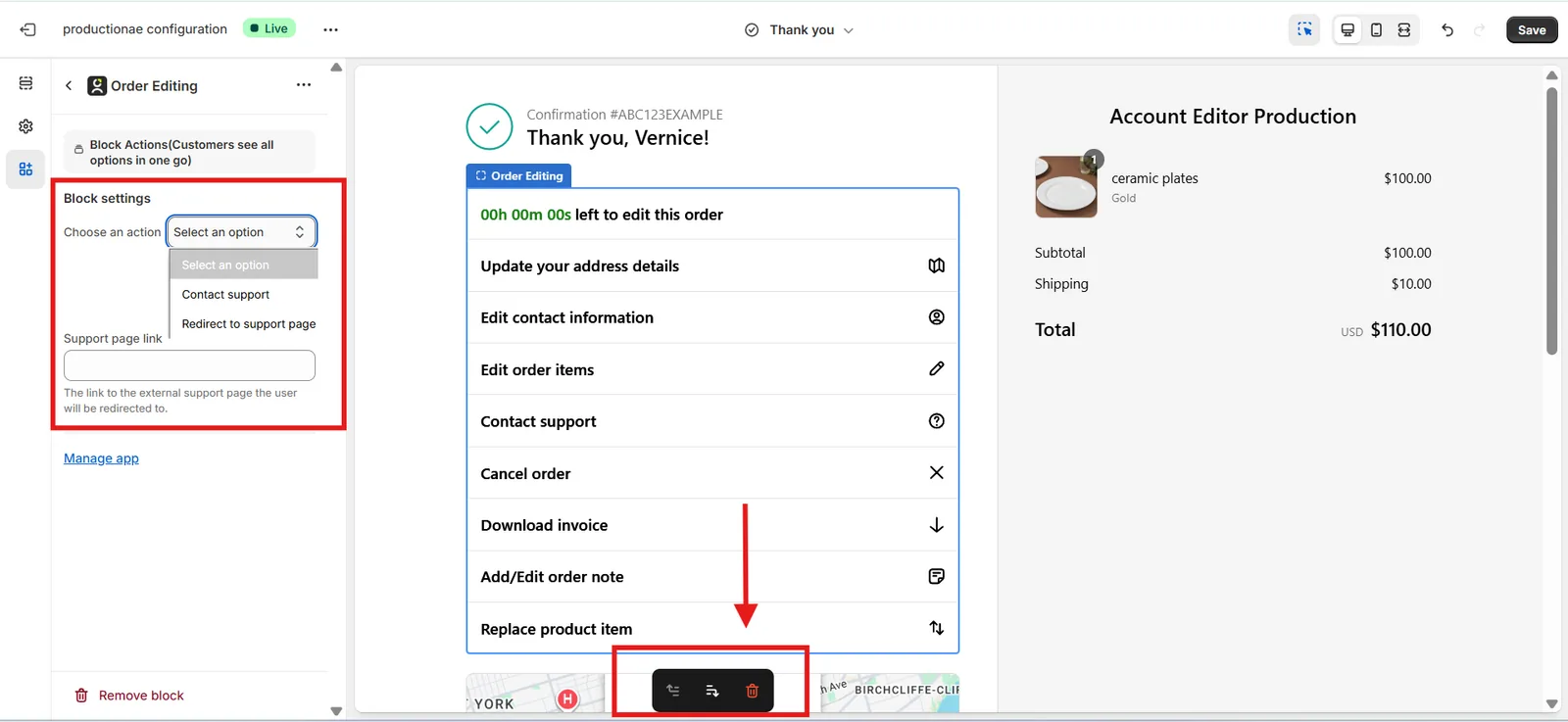
Order Editing Block
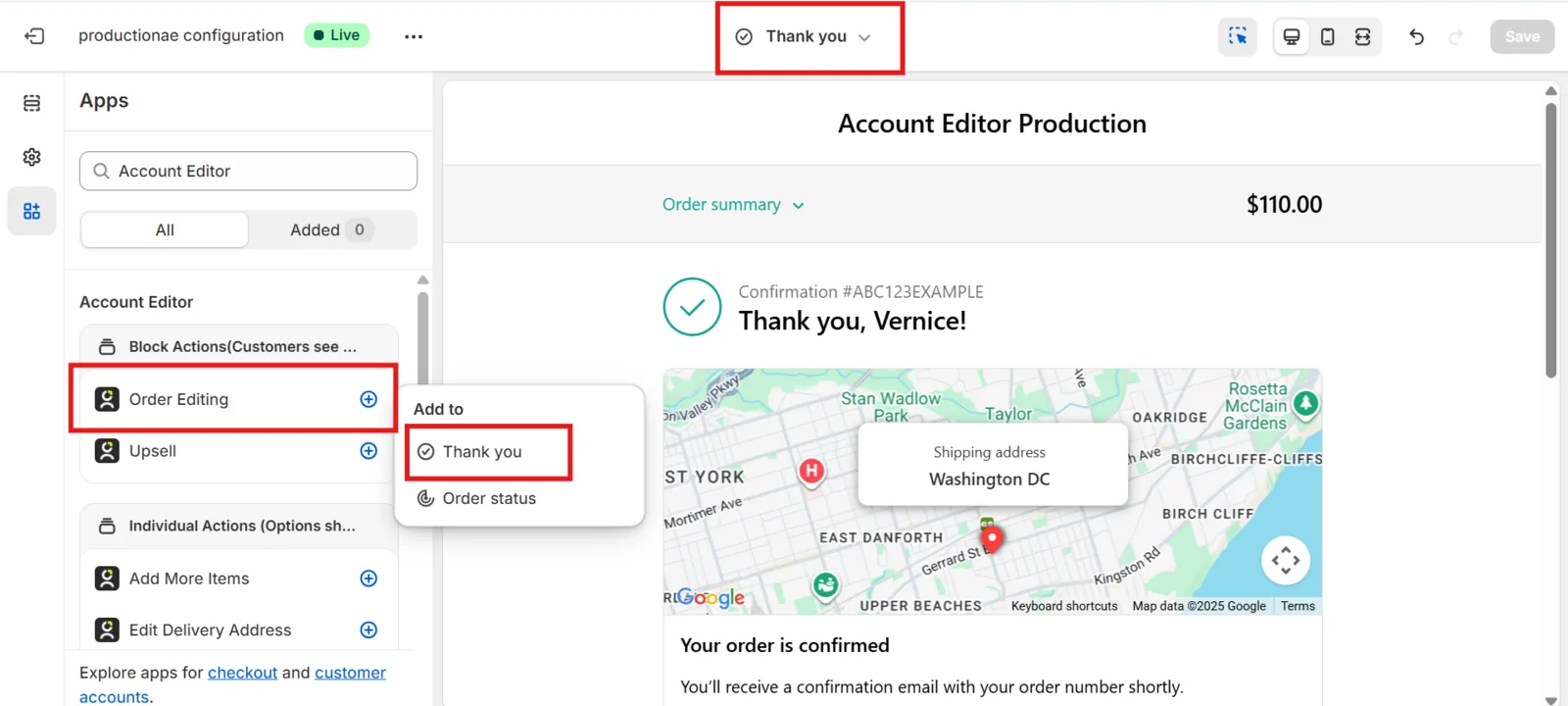
The Order Editing Block gathers all major editing options into one unified widget.
Customers can:
- Edit shipping address
- Edit contact details
- Edit order items
- Cancel order
- Download invoice
- Add/Edit order note
- Replace product item
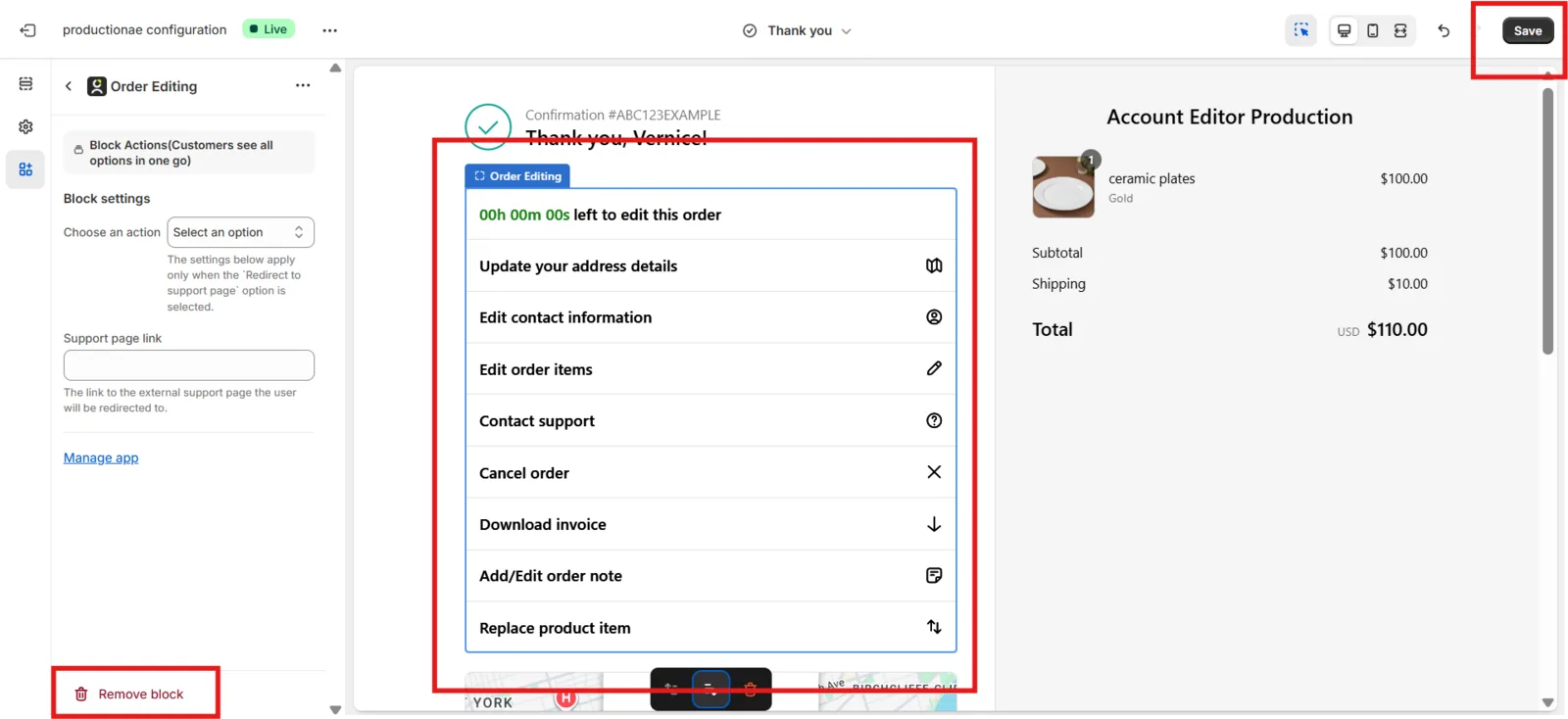
Use Case Example:
A customer notices they entered the wrong shipping address.
They click Update your address on the Thank You Page → redirect to Order Status Page → fix it immediately before fulfillment begins.
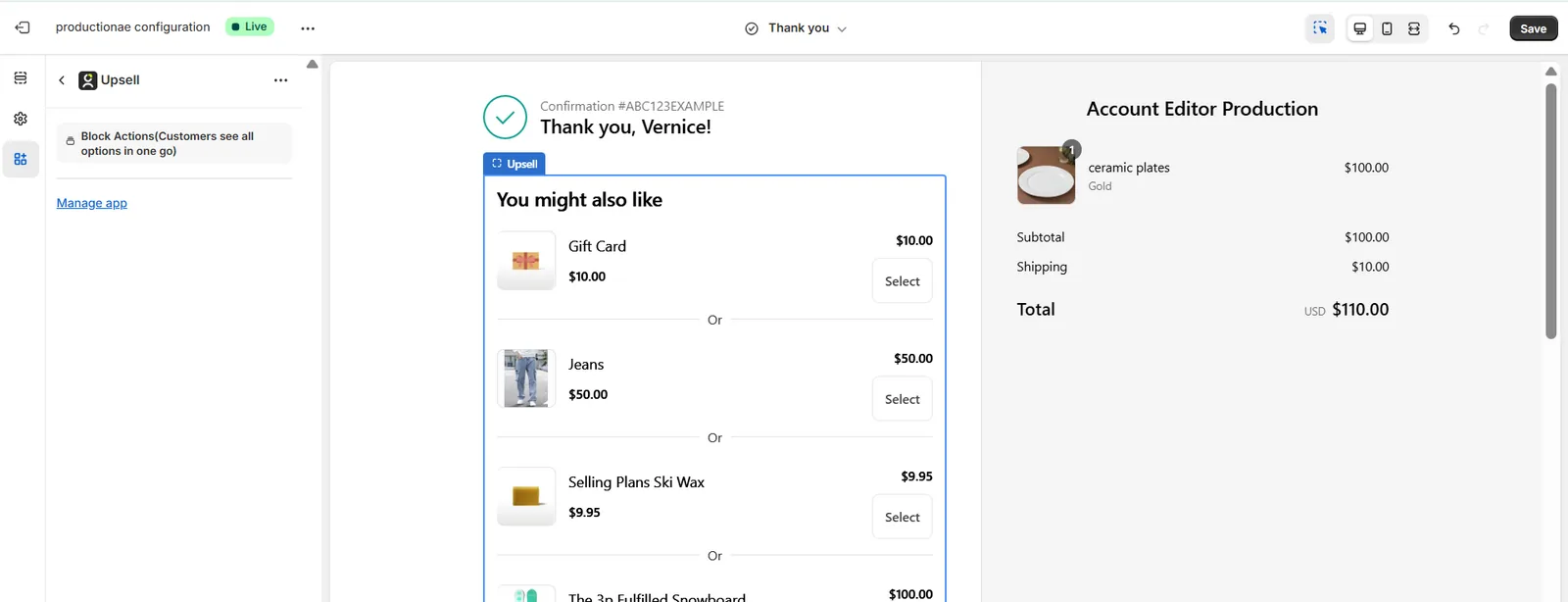
Upsell Block on Thank You page
The Upsell Block displays recommended products under “You might also like.”
Clicking an upsell redirects customers to the Order Status Page where the upsell is processed.
Use Case Example: A customer buys a snowboard. On the Thank You Page they see related items like “Ski Wax” or “Snowboard Bag” and add them immediately.
Click SAVE to publish the widget.
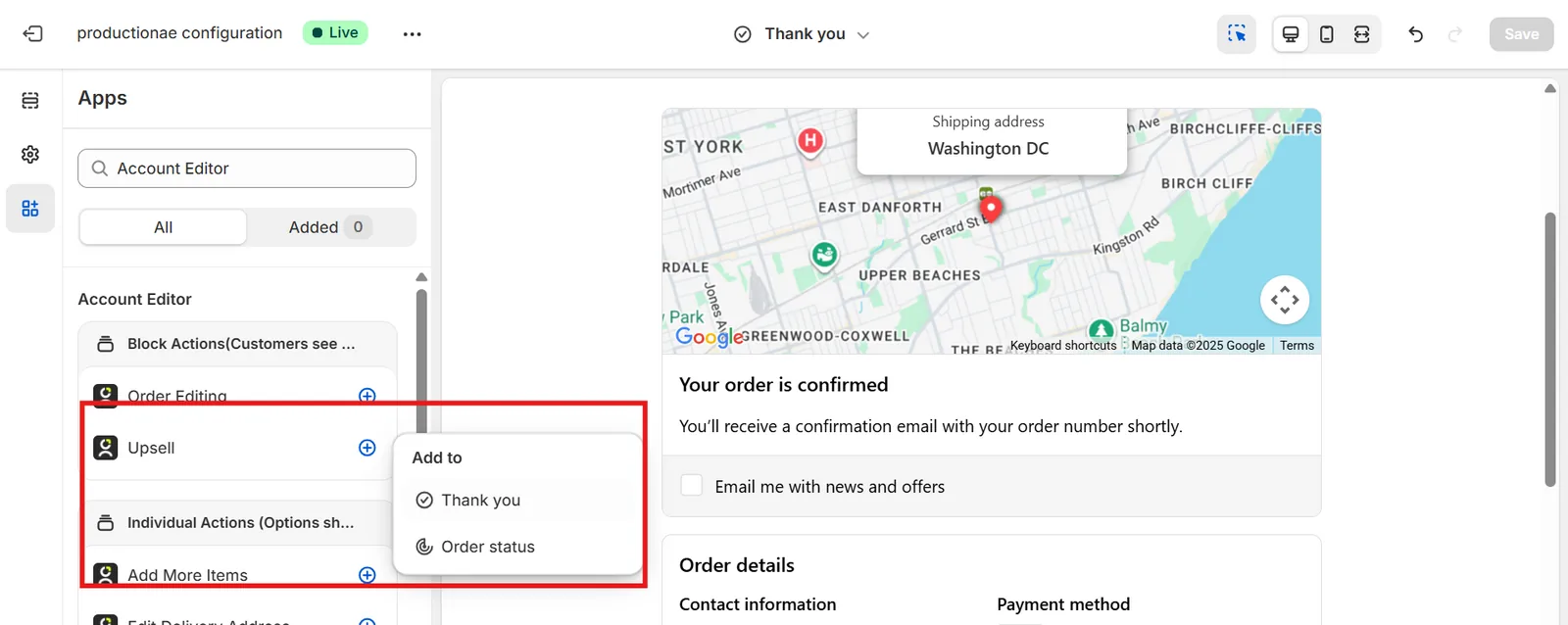
Displays recommended products under “You might also like.”
Individual Extensions on the Thank You Page
Most Individual Extensions only work on the Order Status Page, but a select few can also appear on the Thank You Page.
These act as standalone widgets that highlight specific actions.
When clicked, the customer is redirected to the Order Status Page, where the action actually applies.
Available Individual Extensions
1 Edit Order Items
Customers can adjust:
- Product variants
- Quantities
- Remove items
Use Case: A customer ordered the wrong size and wants to fix it immediately after checkout.
2 Editing Window Timer
Shows a live countdown of how long the customer has left to edit their order.
Use Case: Store holds orders for 45–60 minutes before fulfillment. Displaying “You have 42 minutes left to edit this order” builds trust and urgency.
Toolbar Controls (Bottom of Block)
At the bottom of each block, you’ll see:
- Reorder icon → Move the widget up or down
- Settings icon → Open block-specific settings
- Delete icon → Remove the widget from the Thank You Page
Block Settings
Inside the block settings, you will find:
1 Contact Support Mode
Customers clicking the Order Editing block are redirected to the Order Status Page, where actions run.
2 Redirect to Support Page
If enabled, clicking the widget redirects customers to an external URL (help center, email form, etc.)
Best Practices
Add the Order Editing Block if you want customers to see all options in a unified space Add Upsell Block to increase post-purchase revenue Use Individual Extensions for precise placement and cleaner layouts Always remember:
Benefits of Adding Widgets to the Thank You Page
- Builds customer confidence by showing they can fix mistakes immediately
- Reduces support tickets (“I need to change my order”)
- Increases AOV through personalized upsells
- Encourages customers to review their order instead of canceling it
- Provides a structured, branded post-purchase experience
FAQ — Thank You Page
1. Why don’t actions run directly on the Thank You Page?
Shopify only allows order edits on the Order Status Page, so the Thank You Page acts as a launcher.
2. Can I show different widgets on Thank You vs Order Status?
Yes. You can mix Block Extensions and Individual Extensions differently on both pages.
3. Why should I add upsells to the Thank You Page?
Because purchase intent is still high, making it one of the strongest points for upsell conversions.
4. Can I disable editing options on the Thank You Page but keep them on the Order Status Page?
Yes. Simply remove the block from the Thank You Page via Theme Editor.
5. Does the Thank You Page support all Individual Extensions?
No. Only selected ones like Edit Order Items and Editing Window Timer are supported here.
6. Will customers get confused by redirects?
No — redirects are instant, and Shopify uses the Order Status Page for all post-purchase logic universally.
7. Do these widgets support multiple languages?
Yes. All labels follow your Shopify and Account Editor localization settings.
8. Do Thank You Page widgets work for subscription orders?
Most editing actions are restricted for subscription apps, but upsells and contact-support widgets still work normally.