
Order Status Page (OSP) — Where All Actions Actually Run
The Order Status Page is the page where every Account Editor action is executed.
While the Thank You Page only displays widgets and redirects customers, the OSP processes:
This makes it the most important page for post-purchase customer self-service.
- Order edits
- Address changes
- Cancellations
- Post-purchase upsells
- Discount logic
- Invoice downloads
- Shipping method changes
Adding the App Block on the Order Status Page
To enable post-purchase actions:
- Go to Account Editor → Dashboard
- Click Add app block → Order Status Page
- Select your Block Extensions or Individual Extensions
- Click SAVE
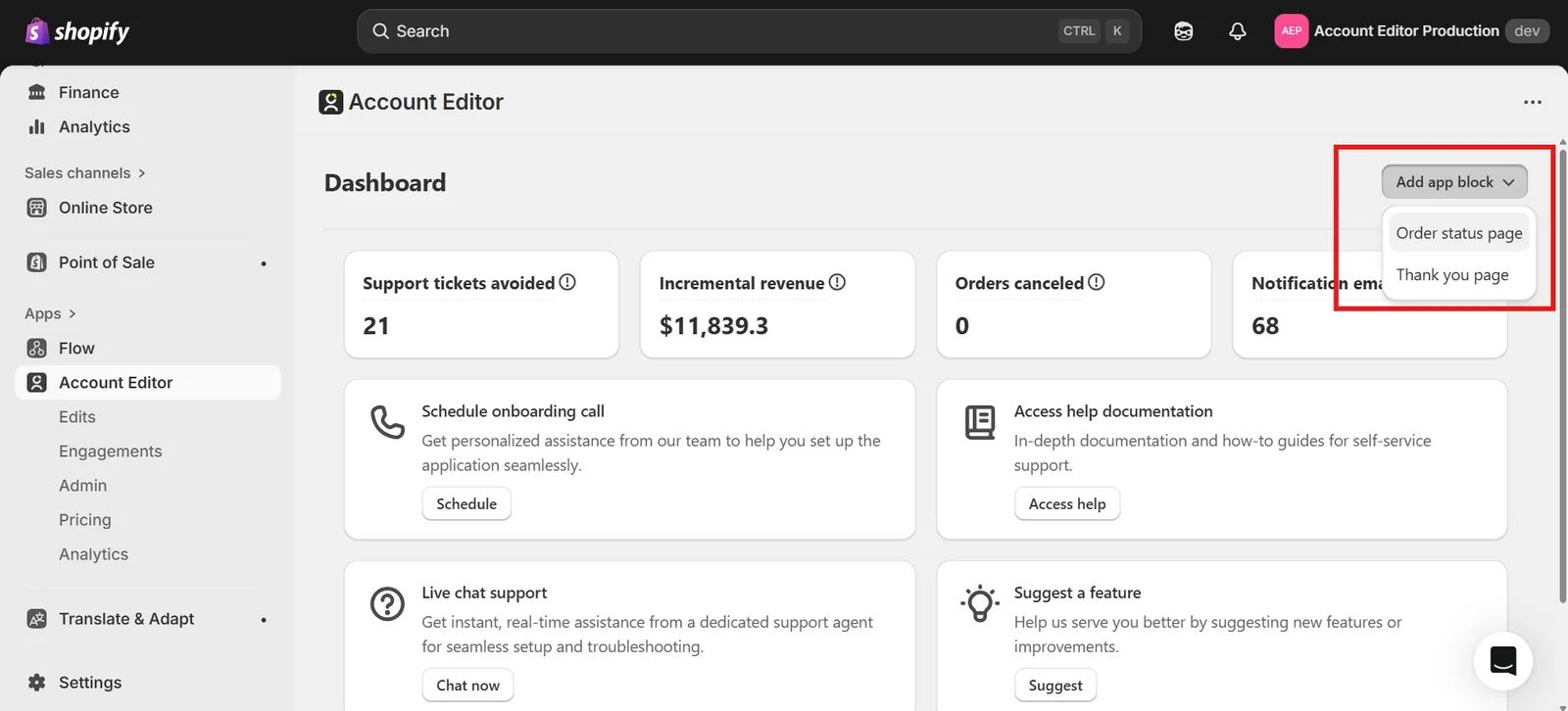
Block Extensions on the OSP
Block Extensions combine several actions into a single widget for a clean, unified customer experience.
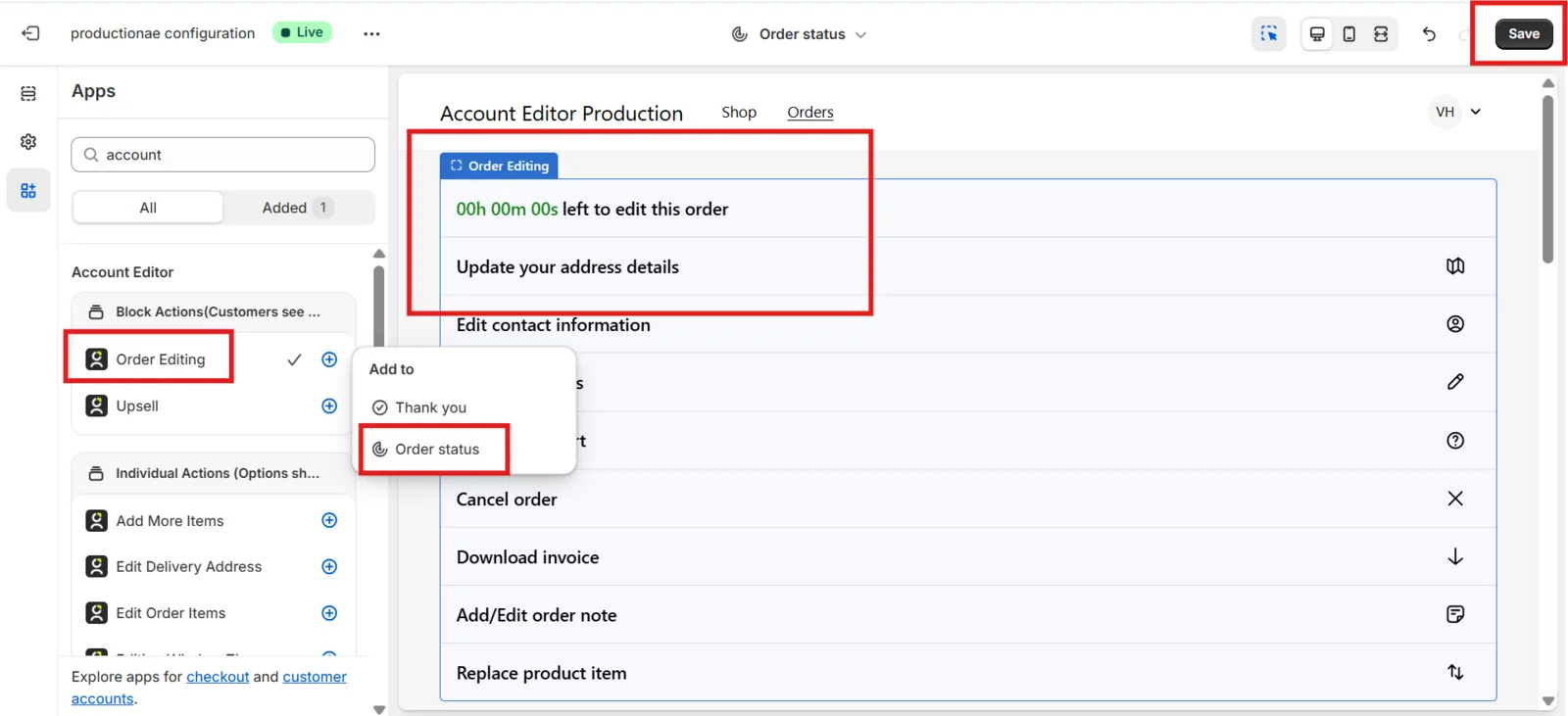
1. Order Editing Block
Displays all editing options in one widget:
- Edit shipping address
- Edit contact details
- Edit order items
- Cancel order
- Download invoice
- Add/Edit order notes
- Replace product item
Use Case:
A customer wants to fix their phone number and remove an item.
Instead of clicking multiple buttons, they open one block and handle everything together.
2. Upsell Block
Shows product recommendations under “You might also like.”
Clicking an upsell item immediately runs the upsell flow on the OSP.
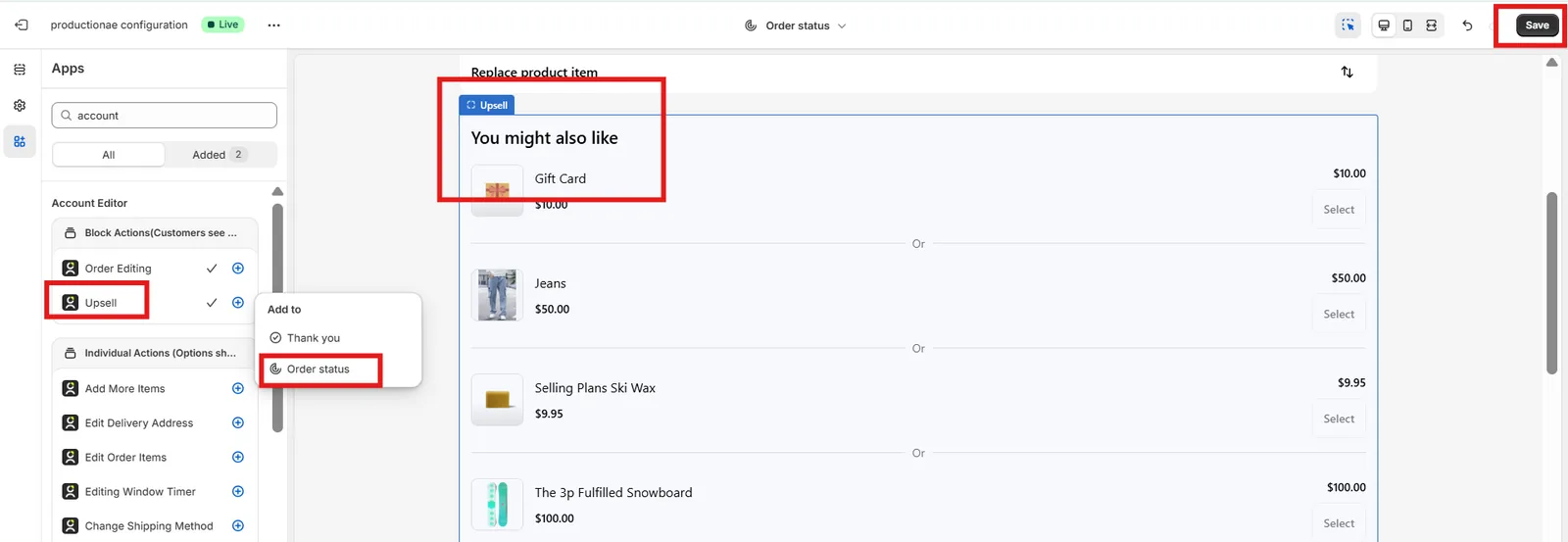
Clicking on a product immediately runs the upsell flow here on the Order Status Page.
Use Case:
After ordering a snowboard, customers see accessories like bindings or wax and add them instantly.
Individual Extensions on the Order Status Page
Individual extensions allow precise control. Instead of showing all actions in one block, you can decide exactly which options to give customers.
Available Individual Extensions
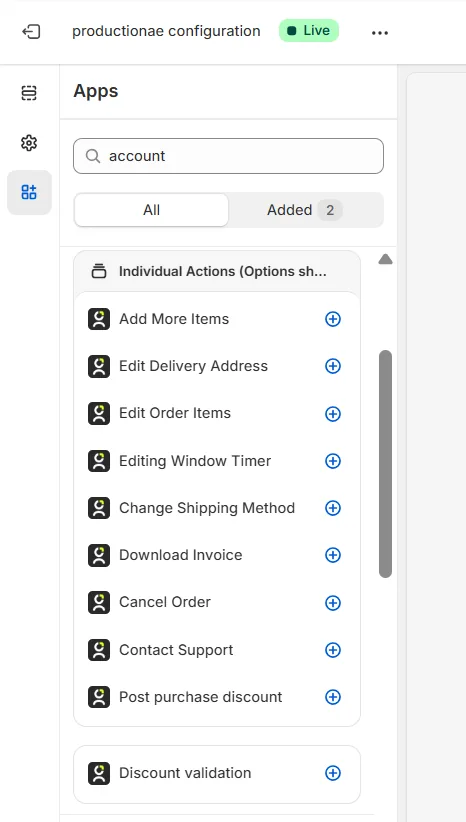
Add More Items
Add extra products post-purchase.
Use Case: Forgot an item → add it instantly.
Edit Delivery Address
Fix address mistakes before fulfillment.
Use Case: Wrong apartment or ZIP code.
Edit Order Items
Change variants, quantities, or remove items.
Use Case: Size M → L.
Editing Window Timer
Shows time left to edit before order locks.
Use Case: Ensures customers act quickly.
Change Shipping Method
Upgrade to Express or choose a cheaper option.
Use Case: Delivery needed sooner.
Download Invoice
Instantly download a branded PDF invoice.
Use Case: B2B customers or tax documentation.
Cancel Order
Self-serve cancellation before fulfillment.
(Use Case: Accidental or duplicate orders.)
Contact Support
Quick pathway to your helpdesk or support page.
Use Case: Customer needs clarification.
Post-Purchase Discount
Apply a missed promo code after checkout.
Use Case: “I forgot my discount code!”
Best Practices for OSP Setup
- Use Block Extensions when you want a clean all-in-one experience
- Use Individual Extensions when you want precise placement and flexibility
- Always add the Editing Window Timer to avoid late edits disrupting fulfillment
- Pair Add More Items + Upsell Block to increase post-purchase revenue
- Enable Cancel Order only if your shipping/fulfillment workflow supports it
Frequently Asked Questions (Order Status Page)
Why do actions run only on the Order Status Page and not on the Thank You Page?
Because Shopify only allows post-purchase order changes (editing, cancellations, upsells, discounts) to be processed on the Order Status Page (OSP). The Thank You Page is display-only.
Q2. If I add blocks in the Thank You Page but not on the Order Status Page, will features work?
No.
Q3. Can customers use these actions anytime?
Customers can only edit orders within your configured edit window. After the timer expires, all actions automatically disable or hide.
Q4. My customer says a widget is not showing — what should I check?
Check these four things:
Is the block added to the Order Status Page? Is the edit window active? Are there any tag-based restrictions? Has the order already been fulfilled or partially fulfilled?
Q5. Will adding blocks here affect my theme or layout?
No — Account Editor uses Theme App Extensions, so widgets are safe, theme-compatible, and removable anytime.
Q6. Do Individual Extensions and Block Extensions behave differently?
Functionally no — both run the same editing logic. But they differ in layout and customer experience:
- Blocks = grouped actions
- Individual = precise control & placement
Q7. Can I reorder how widgets appear on the OSP?
Yes. Use the Reorder icon at the bottom of each block to drag and reposition.
Q8. Do upsells and extra items create a new order?
No.
All edits (including upsells) update the same original Shopify order.
Q9. Will customers see these blocks in their Customer Account → Orders page?
Only actions specifically added there (e.g., Cancel Order, Contact Support) will appear. Most editing actions run exclusively on the Order Status Page.
Q10. What if my store uses a 3PL or ERP? Will edits sync correctly?
Yes — as long as the fulfillment hasn’t started, all edits sync automatically through Shopify to all connected apps.