A customer writes: "I ordered the wrong size. Can you cancel it so I can reorder?"
You can do it. Cancel the order, refund the payment, wait for the customer to place a new one. Or you can edit the order, swap the size, and move on. Both fix the problem. They cost very different amounts.
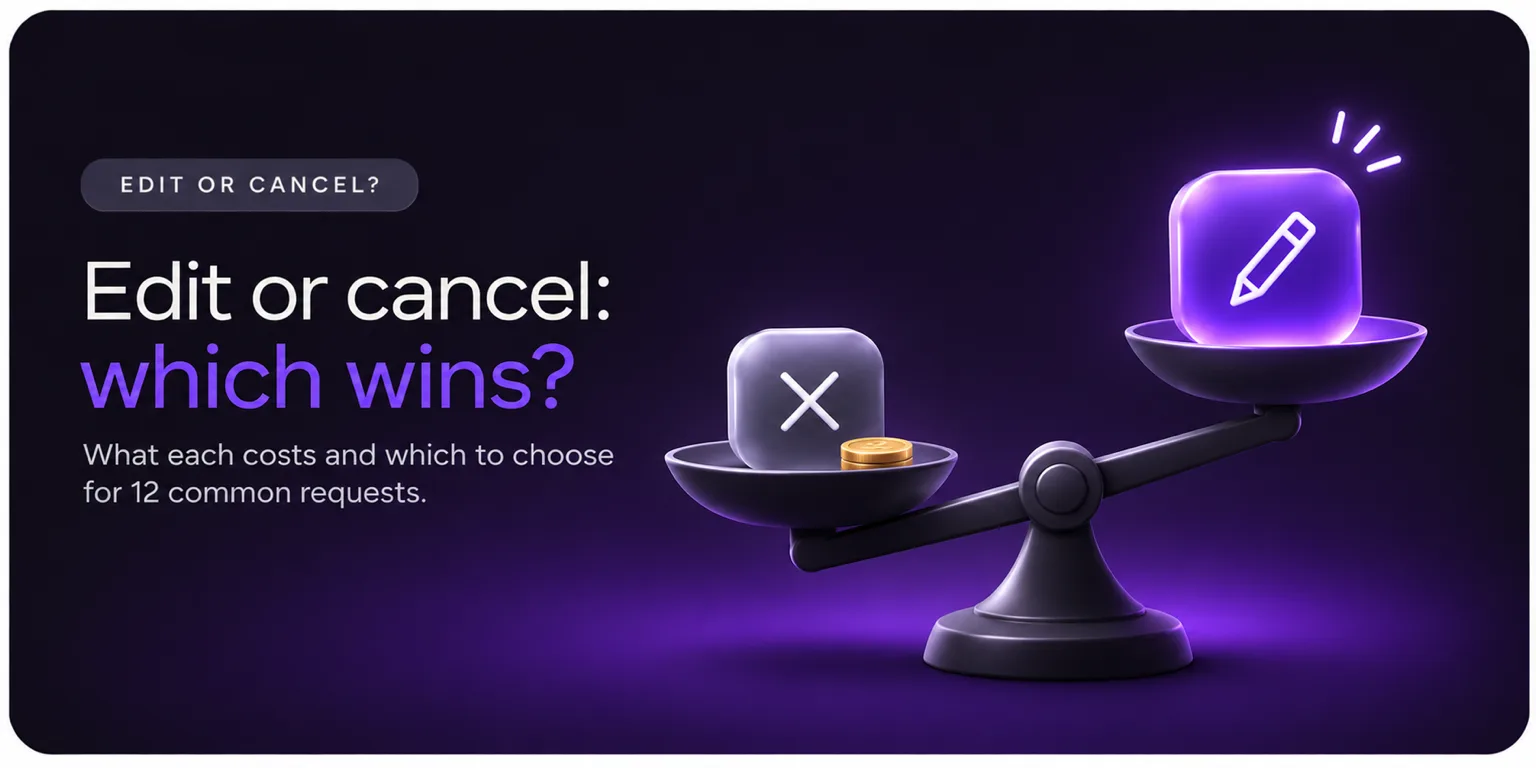
This guide helps you decide, order by order. It covers what Shopify does on each path, what each one costs you, and which to use for the 12 most common requests. At the end there is a short policy you can copy.
The Short Answer
Edit is better when the customer still wants the order. Cancel is better when they don't.
That sounds obvious, but many stores cancel by default because it is easier to do in the admin. Cancelling ends the sale. Editing keeps it alive. If the customer wants what you sell and made a small mistake, cancelling throws away a sale you had already won.
We have a longer argument for this in our post on editing orders vs cancelling them. This guide is the practical side: how to decide.
What Each Option Does on Shopify
Editing an order
Shopify's order editor lets staff add or remove products, change quantities, update shipping fees and apply manual discounts. If the new total is higher, you send an updated invoice. If it is lower, you refund the difference. The edit must happen before fulfillment, according to Shopify's editing orders help page.
The order keeps its number, its payment and its place in your reports. Shopify does limit what you can edit: fulfilled items can't be removed or changed, and local delivery orders, imported orders and orders paid with Shop Pay Installments can't be edited. Some discounts aren't recalculated, and shipping rates aren't recalculated, so check the total.
Cancelling an order
Shopify's cancelling orders page lists the defaults:
You choose a refund route: the original payment method, store credit or "later" if you want to refund part of it or investigate first.
Restocking is on by default, so the items go back into inventory.
The customer is notified by default.
You can't cancel an order after it is partially fulfilled, unless you cancel the fulfillment first.
Orders with pending or scheduled payments can't be cancelled the usual way.
If a third-party service fulfills the order, you may need to cancel it in their system first.
Then comes the part that surprises many merchants: "Credit card transaction fees aren't returned to you when you issue a refund." So the fee you paid on the original payment is gone, even though the sale is gone too.
What Each One Costs You
Here is an illustrative example, not store data. A customer orders a $60 item in the wrong size. Say the payment fee on that order was $2.
Edit the order | Cancel and reorder | |
|---|---|---|
Payment fee | Paid once ($2) | Paid on the first order and not returned, then paid again on the new one ($4 total) |
Sale at risk | None. The order stays. | The customer must come back and reorder. Some won't. |
Support work | One edit | One cancellation, one refund and often a second conversation |
Inventory | Swaps one item for another | Restocks, then reserves again |
Warehouse | One order to update | One order to cancel, one new order to pick |
Customer feeling | "That was easy." | "I had to do it all again." |
The fee numbers are made up to show the shape of the cost. Your own rate will differ. The pattern holds, though: cancel-and-reorder pays twice and risks the sale.
When Editing Is the Better Choice
Pick edit when the customer still wants the order and the change is small.
Address typo or new address. Fixing it before the label prints avoids a failed delivery.
Wrong size, color or variant. A swap before shipping is cheaper than a return after it.
Wrong quantity.
Forgotten item. The order grows and you earn more.
Wrong email or phone. The customer then gets every update.
Gift message or delivery note.
Shipping method change. The customer pays the difference or gets a refund.
Our guides on common order editing scenarios and self-serve address edits go deeper on these.
When Cancelling Is the Better Choice
Pick cancel when keeping the order doesn't make sense.
The customer doesn't want it anymore. Some people have simply changed their mind. Keeping the order only creates a return.
Fraud or payment doubt. If the order looks risky, cancel before it ships. Shopify's own fraud and fulfillment hold tools can give you time to look first.
The item can't ship. Out of stock, discontinued or damaged before packing.
The change is too large. A different product in a different price range may be a new order, not an edit.
The order can't be edited. Local delivery orders, imported orders and others in Shopify's block list may only allow a cancel and a new order.
A chargeback risk. A customer who is angry and asking for a refund is better refunded early.
Even here, ask one quick question first: "What's the reason?" A customer who says "shipping is too much" may stay for free shipping on the same order. Our post on why customers cancel orders covers what to try.
12 Common Requests: Edit, Cancel or Decline?
Request | Best choice | Why |
|---|---|---|
Fix an address typo | Edit | Cheap and fast before pick |
Ship to a different address | Edit | Same order, new destination |
Change size or color | Edit | Avoids a return |
Change quantity | Edit | Adjust the total, no reorder |
Add an item | Edit | Same shipment, bigger order |
Remove an item (keep the rest) | Edit | Partial refund |
Change the shipping method | Edit | Pay or refund the difference |
Add a discount code that was forgotten | Edit (manual discount), with care | Shopify can't add codes to an existing order, so apply a manual discount |
"I changed my mind" | Cancel, after an offer | The customer doesn't want it |
"I found it cheaper elsewhere" | Offer first, then cancel | Price match or free shipping may keep it |
Order looks fraudulent | Hold, then cancel | Review before shipping |
Order already partly shipped | Decline the cancel or edit | Shopify blocks both. Offer a return after delivery |
What If It's Already Shipped?
Neither option works. Shopify says you can't cancel a partially fulfilled order and can't remove or change the quantity of fulfilled items. Your options are to contact the carrier about an address change, accept a return after delivery, or refund and let the customer keep the item. Tell the customer plainly, then give them the best path you have.
The Best Setup Uses Both
You don't have to choose one for all orders. A simple setup works well:
Let customers edit for a fixed window. Give them a way to fix addresses, variants, quantities and contact info on their own.
Put a short step before cancellation. Ask for the reason, then show a relevant offer: free shipping, a discount, an item swap.
Let them cancel if they still want out. Make it fast and clear, with a refund route you control.
Block what can't be changed. Hide edit and cancel buttons for fulfilled orders, wholesale orders and others you restrict.
This is what Account Editor is built for. Shoppers edit from the order status page inside your window. If they start to cancel, you can show an offer first, and a reason report shows why people leave. You can set cancellations to process automatically or wait for approval, choose the refund route, and block cancellations by order or customer tag. It has limits: no free plan (just a 14-day trial), no editing of partially fulfilled orders, and your 3PL must read the edit after the window closes.
A One-Page Policy You Can Copy
Write these five rules and share them with your team:
Edit first. If the customer still wants the order and the change is small, edit it.
Offer before you cancel. Ask the reason and try one offer.
Cancel when the order shouldn't ship. Fraud, stock, payment problems and clear customer intent.
Never promise what Shopify blocks. Check status first: fulfilled, local delivery, pending payment, imported.
Confirm every change in writing. Tell the customer what changed and what, if anything, they owe or will get back.
For a rules-based approach to safe self-serve edits, see our guide to order editing rules.
Final Verdict
Editing is better for most requests, because most requests are small fixes from customers who still want the order. Cancelling is better when the customer wants out, the order looks risky or the item can't ship. The mistake is treating cancel as the default because it is one click in the admin.
If you handle many of these by hand, a self-serve tool can save the back and forth and catch the order before the warehouse does.
Keep the sale, not the ticket Let shoppers fix details themselves, and show an offer before they cancel. 14-day free trial, unlimited edits on every plan.