
Ship Theory
Ship Theory Integration — Shopify Order Edited Sync (Account Editor)
This guide helps merchants using Ship Theory configure the integration so that Account Editor order edits are always reflected correctly — with no mismatched totals or stale order data sent to Ship Theory.
Step-by-Step Configuration
Step 1 — Enable Manual Payment Capture in Shopify
Set Shopify to hold payment in Authorized state so Ship Theory cannot import the order until editing is complete and payment is captured.
- Log in to Shopify Admin
- Go to Settings → Payments
- Scroll down to Payment capture method
- Select "Manually" — Authorize payment at checkout and capture manually
- Click Save
Step 2 — Open Channels in Ship Theory
Log in to Ship Theory and navigate to Channels in the left sidebar. The Channels section is where all your connected sales channels are managed.
- Log in to your Ship Theory account
- On the left sidebar, click Channels
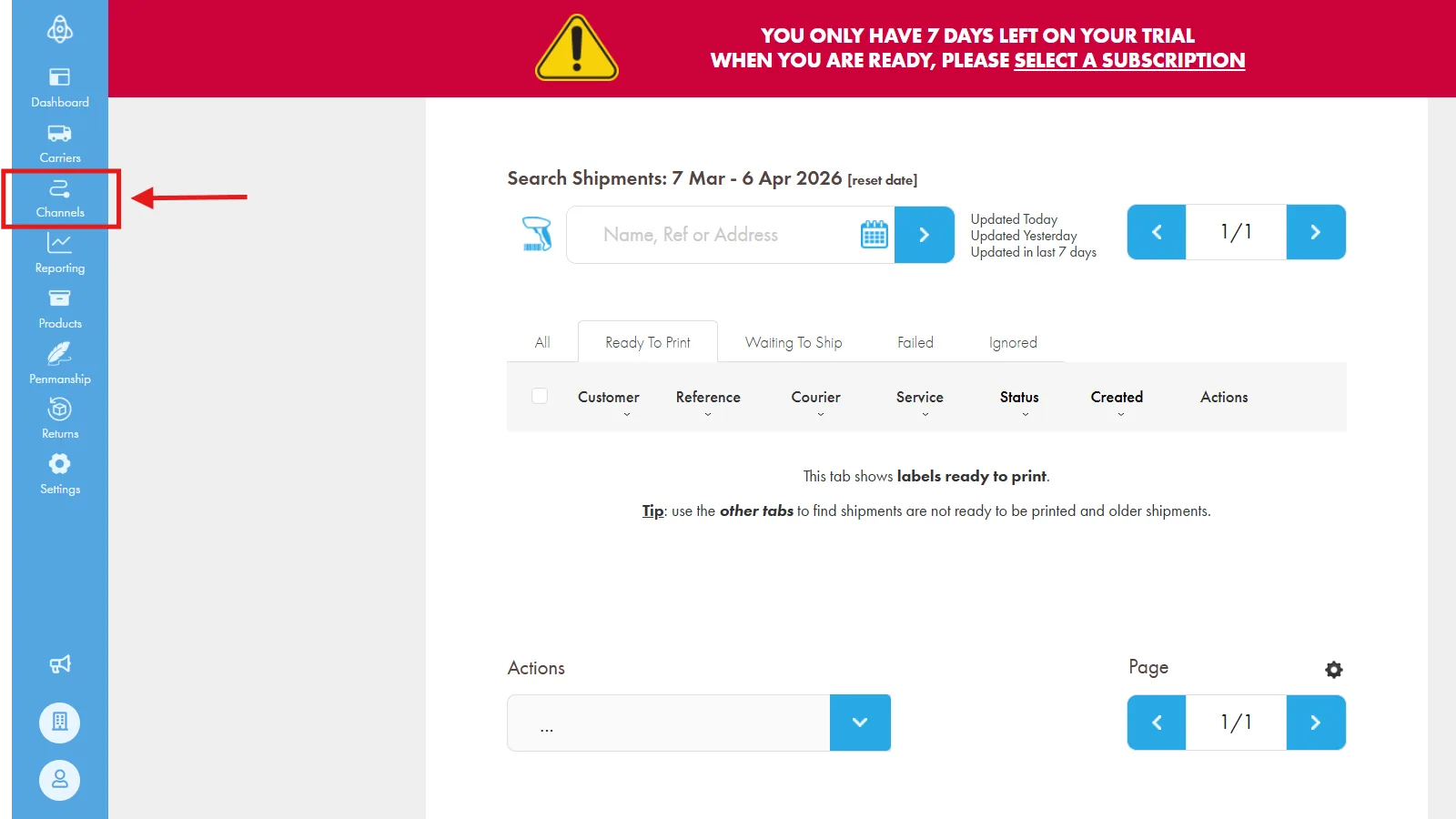
Step 3 — Open Your Shopify Channel
After clicking Channels, a panel opens showing all connected channels. Click on Shopify to open your Shopify channel settings.
- In the Channels panel, locate Shopify in the list
- Click Shopify to open its settings
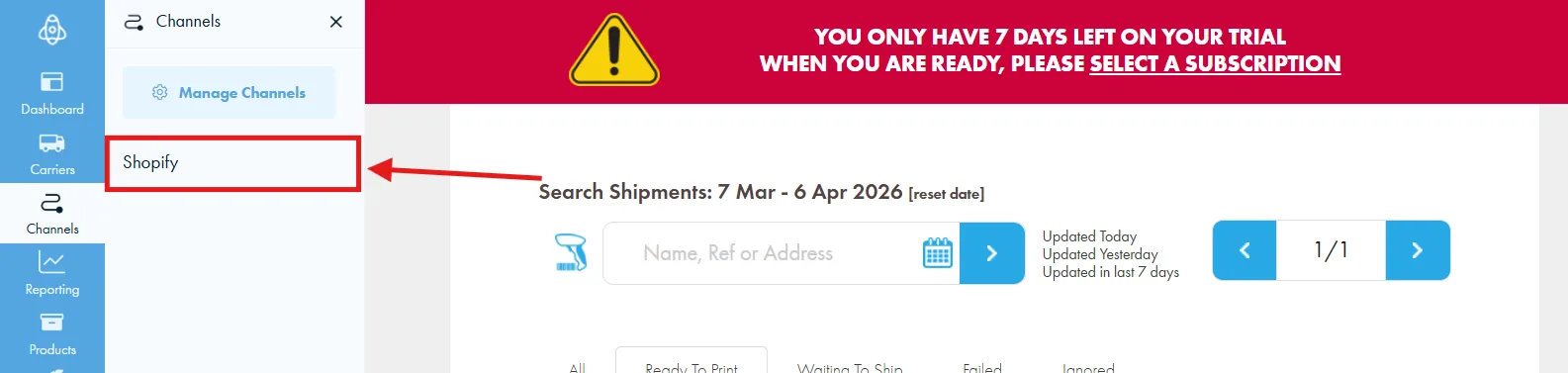
Step 4 — Configure Shopify Order Preferences
After selecting your Shopify channel, the SHOPIFY ORDER PREFERENCES page opens. Set each field as described below:
- Download Fulfillments or Fulfillment Orders? — Select "Fulfillment Orders" from the dropdown
- Receive Shopify Orders Automatically? — Select "Yes, Automatically"
- Select a Shipment Fulfillment Location — Choose your Shop location from the dropdown
- Orders Payment Status — This is the most critical setting. Select "Paid" only:
| Status Option | Should You Select? |
|---|---|
Authorized | No — orders still awaiting capture |
Expired | No — authorization has lapsed |
| Paid | Yes — select this one |
Partially Paid | No — incomplete payment |
Partially Refunded | No — already refunded in part |
- Shopify Order Tags — Leave blank unless you need to filter by specific tags
- Click Save to apply your settings
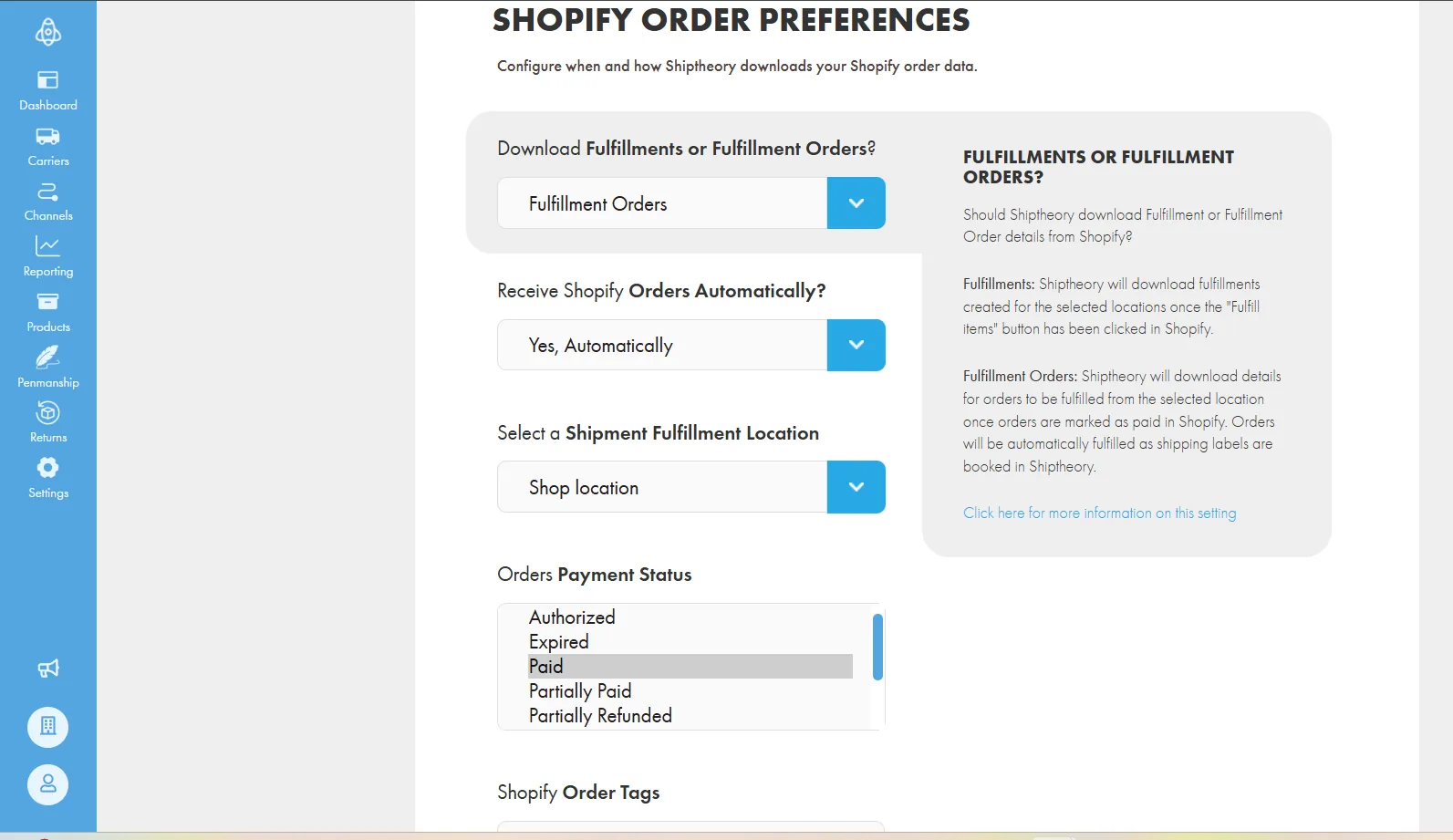
Authorized or any other value, Ship Theory will import orders before you have a chance to edit them in Account Editor — resulting in mismatched totals and incorrect shipments.Authorized status — giving you a clean, uninterrupted window to edit the order in Account Editor before capturing payment.Step 5 — Edit Order in Account Editor, Then Capture Payment
Once setup is complete, follow this workflow for every order:
- New order arrives → Payment = Authorized (Ship Theory skips it )
- Open order in Account Editor — add or remove items freely
- Save / commit your edits in Account Editor
- Go to Shopify Admin → open order → click Capture Payment
- Payment becomes Paid → Ship Theory imports the final correct order
What happens after this setup:
- Correct order total — removed items not counted
- Added items appear correctly in Ship Theory
- Quantity changes reflected accurately
- Shipping method updates supported
- No manual correction needed in Ship Theory
Automate Payment Capture with Shopify Flow
Instead of manually capturing payment on every order, set up a Shopify Flow automation to manage capture while giving you a short review window for normal Online Store orders.
Step 1 — Trigger
A new order is created in your store.
Step 2 — Condition 1: Sales Channel Check
The flow checks whether the order came from the Online Store.
- If NOT from Online Store (e.g. POS or draft order) → capture payment immediately
- If from Online Store → continue to the next check
Step 3 — Condition 2: Fraud Risk Check
Shopify's fraud analysis checks the order risk level.
- If risk level is HIGH → capture payment immediately (review these orders manually)
- If risk is not HIGH → continue to the next check
Step 4 — Condition 3: Restricted Tag Check
The flow checks whether the order is tagged restricted.
- If tagged "restricted" → capture payment immediately
- If not restricted → wait 15 minutes, then capture payment
Flow Summary
| Scenario | Action |
|---|---|
| Order from other channels (not Online Store) | Capture immediately |
| Online Store + HIGH risk | Capture immediately |
| Online Store + tagged "restricted" | Capture immediately |
| Online Store + normal order | Wait 15 min, then capture |
Common Issues & Fixes
| Issue | Likely Cause | Fix |
|---|---|---|
| Ship Theory imports order before editing is done | Import filter includes Authorized or All statuses | Change import filter to "Paid" only in Shopify channel settings |
| Orders not appearing after payment capture | Auto-sync disabled or channel disconnected | Check Channels → Shopify → ensure connection is active and auto-import is enabled |
| Edited order shows old data in Ship Theory | Order was already downloaded before edit | Always edit in Account Editor before capturing payment — Ship Theory picks up the final version on import |
| Authorization expired before capture | 7-day window missed | Capture payment within 7 days of order placement |
| Shopify channel not showing in Channels panel | Channel not added yet | Click "Manage Channels" at the top of the panel → add Shopify → authorize access |
Best Practices
- Always configure Ship Theory to import Paid orders only — never import All or Authorized orders
- Edit orders in Account Editor before capturing payment for the cleanest workflow
- Capture payment promptly after editing — do not let the 7-day authorization window expire
- Use Shopify Flow automation to reduce manual capture work on routine orders
- Periodically check your Ship Theory Channels settings to ensure the Shopify connection is active
Need Help?
If orders still don't sync correctly after following this guide, contact Account Editor Support and share:
- Your store URL
- Screenshot of Ship Theory → Channels → Shopify settings
- Screenshot of Shopify payment capture setting
- The affected order number